Contents
NOTES
Overview
With NetChart’s Notes tool, teams can easily find information about projects directly on the interface.
This feature guarantees that all information is always organized and available.
How to use
Log in to your NetChart account.
Create a note
Follow the steps below to create a note.
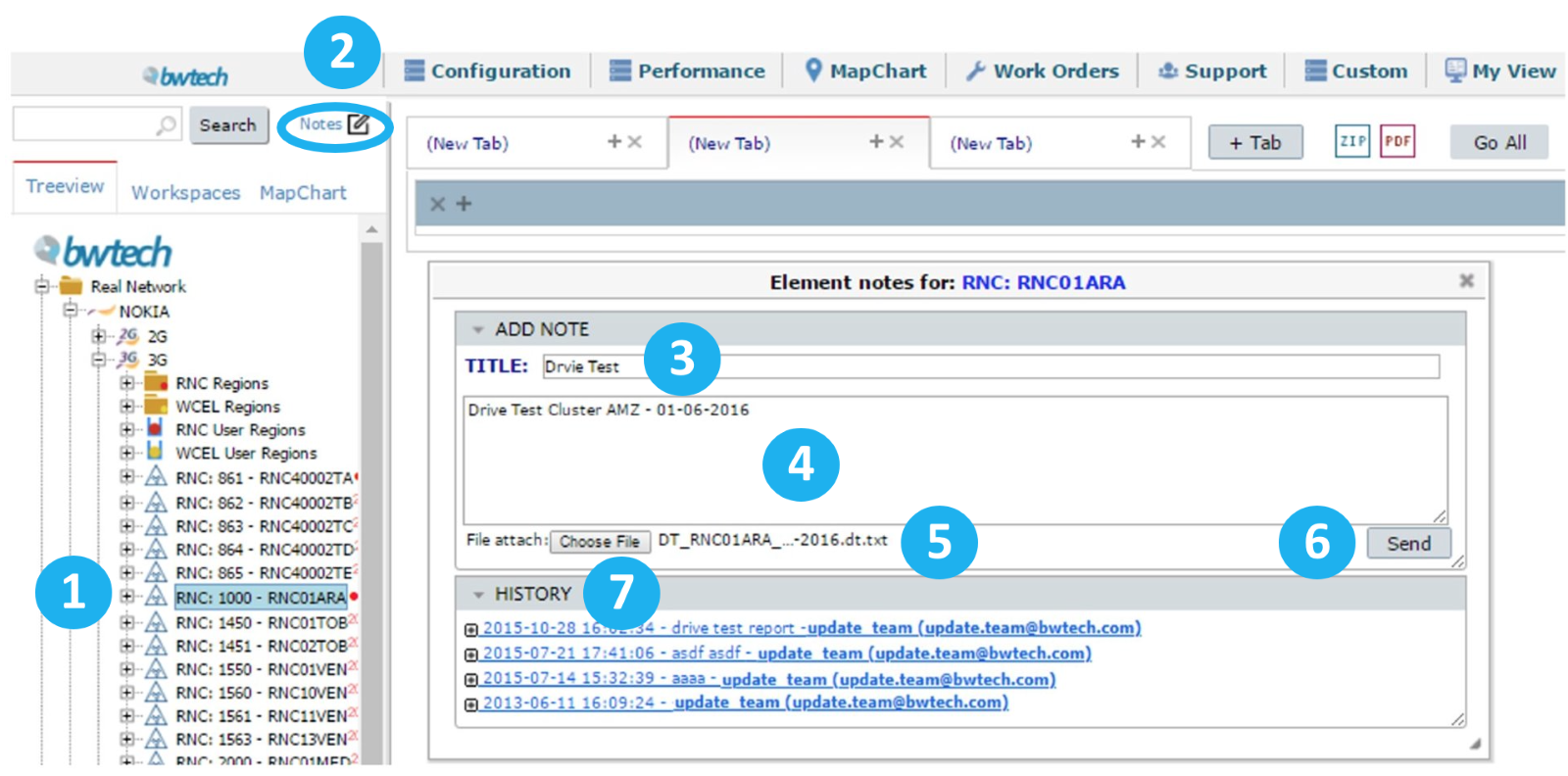
1 – Select the desired element from the treeview.
2 – Select the Notes shortcut.
3 – Insert the note title. This name will help you and other users to identify this note in the future. This title will be displayed in the item History.
4 – Insert any comment related to this note, such as specific conditions of the element, problems that occurred, attachment contents, etc.
5 – Attach one or more files to be included in this note.
6 – Select Send to save the note into the database. All attached files with the note will be saved. The current username plus the date and time are also saved for future identification.
7 – To view existing notes for an element, select the desired element from the treeview. If the Element Notes window doesn’t open instantaneously, click on its shortcut. Select the available entries in the History Bar.
Use cases
The Notes tool allows you to store all documents related to a Network Element in a single database. Keep documentation organized and avoid losing information that is scattered throughout different computers. Some information you might want to store is drive test reports, TSS, coverage prediction, pictures of the equipment, notes about problems, or any other relevant information.
Common errors
Invalid element
Choosing invalid elements will generate the error message: “An invalid element has been selected”.
Valid elements are elements that exist (whether physical or logical). An element class is not considered an element. For example, Nokia 3G is an element class; RNC: 1019 is a physical element.