Contents
Generic Regions
OVERVIEW
Generic Regions is a new type of region creation.
This feature enables the user to create and analyze regions that don’t follow the traditional controller, site, cell hierarchy. In Generic Regions, they can create any hierarchy level and set up any type of classification with different elements of the network, such as NBIOT, ROUTER, etc.
Example: the user can create a region using only sites. This means that any cells added to the site will be in the same region to create KPIs. The same can happen if the user wants to create a region using only cells.
HOW TO USE
Import region
To create a region in this feature there are two main steps required:
- Exporting the ID of the elements you desire to include in the new region.
- Importing the template to create the generic region.
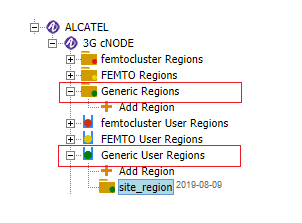
Thus, the user can add any type of element present in the treeview.
Its use is similar to region creation on NetChart. The user just needs to click on the Add Region option, bellow Generic Regions or Generic User Regions, and select the element that will be added.
Restrictions
To create a Generic Region it is important to notice that the user can only add elements of the same type.
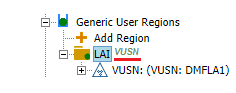
In the figure above, a Generic Region was created using VUSN as type. That means that only VUSN elements can be added to the region.
Also, this feature does not work for Multivendor. This means, that the user will have to test different levels of elements for each vendor.
Drag and drop
There is also the possibility to create a Generic Region by dragging and dropping elements from the treeview – the same way it is done when creating normal regions in NetChart.
To see the step by step on how to do it, you can access the Manage Regions Help page.
USE CASES
As said before, in the Generic Regions feature, the user can create regions with elements that are not in the controller, site, cell hierarchy, such as NBIOT and ROUTER.
Creating an NBIOT region
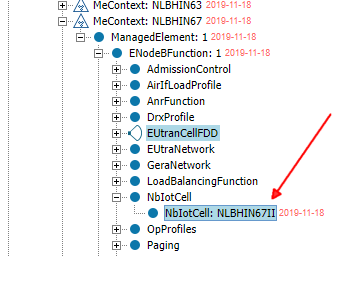
1 – First, select the element type in the treeview. Here, we choose an NBIOT element to create a specific region for them.
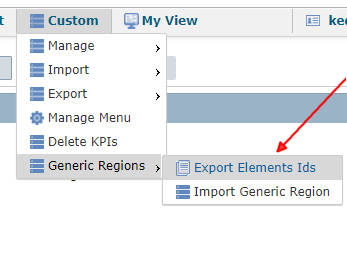
2 – Go to the menu Custom, select the Generic Regions option and click on Export Elements ID.
3 – Click on GO in the Export Regions tab. It will take some time for the system to generate the archive for download.
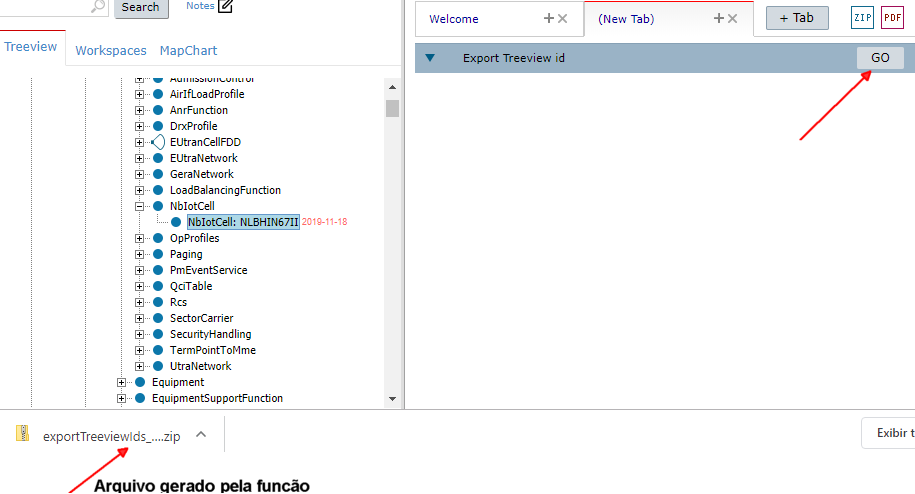
4 – After you download the archive, open it. The document will be created in the format below:
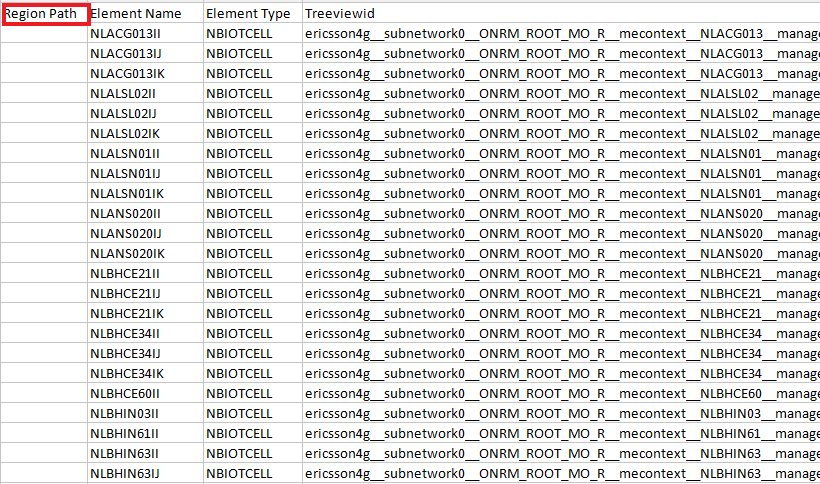
5 – Fill the first column (selected in red in the image above) with the name of the region that will be imported.
6 – So, you can fill it with the name of the regions you want to test, for example, Regions A and B:
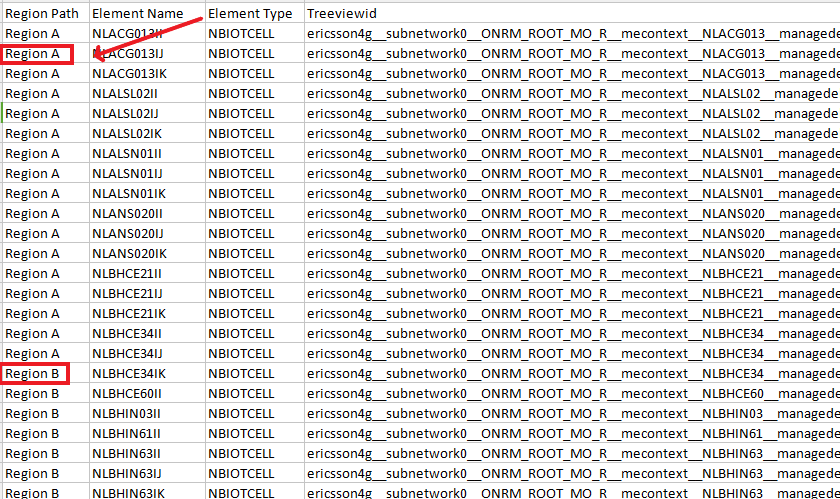
7 – After the document is ready, save it in .txt extension.
8 – Go to the menu Custom, select the Generic Regions option and click on Import Elements ID.
NOTE: This functionality offers the user a template option that he can use to avoid any type of error. So, both archives (the one exported and the one imported) will have the same header to help the user identify them easier.
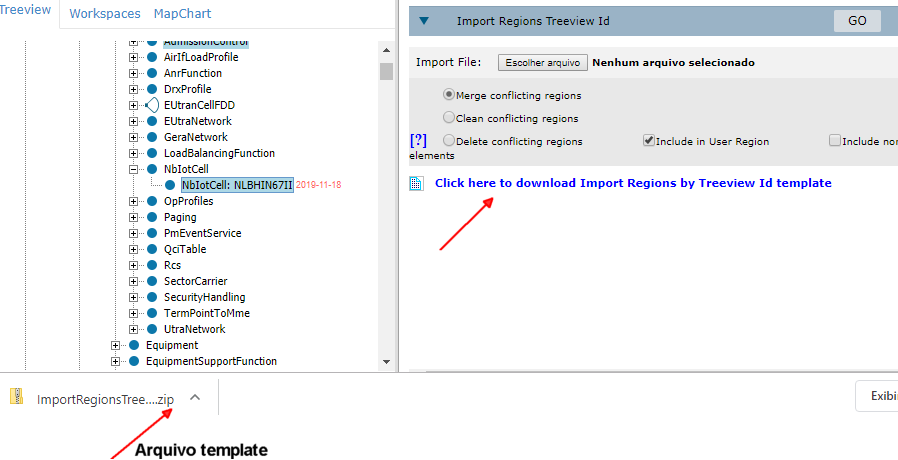
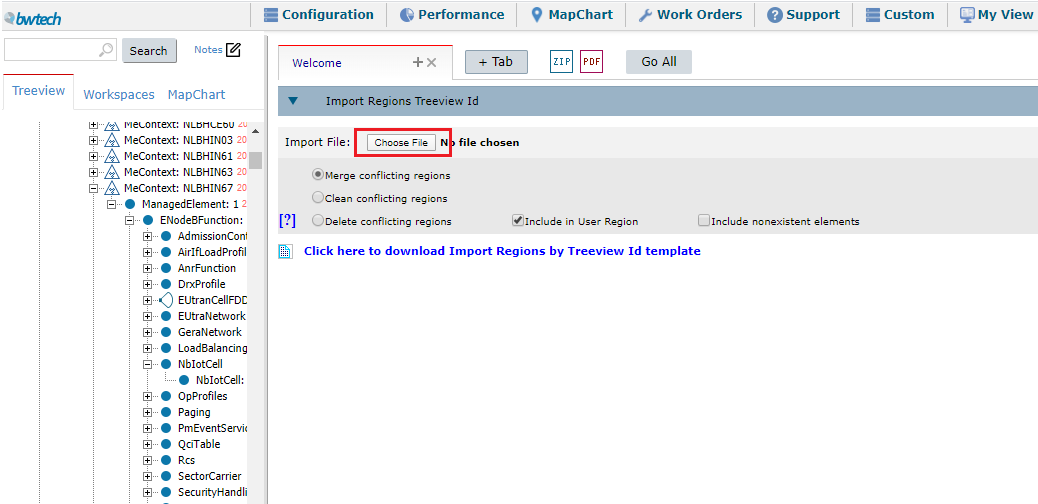
9 – Click on Choose File and upload the document created.
10 – Click on GO and the region will be created to the vendor you selected.
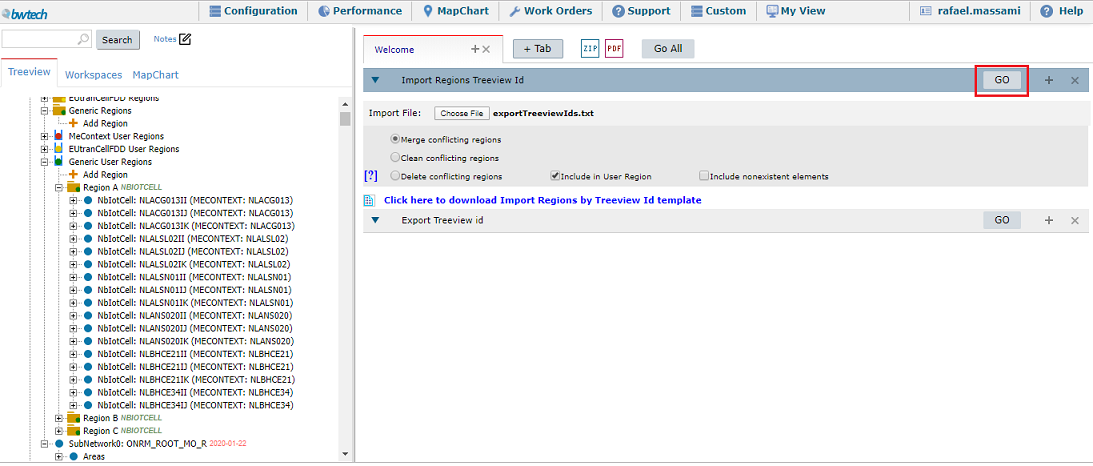
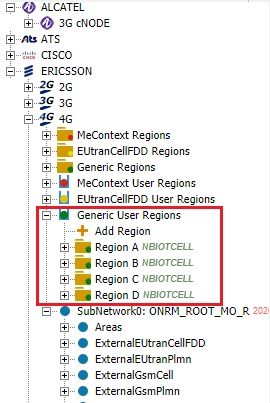
11 – The new Generic Region created will appear below the Generic User Region item in the treeview with its subfolders (Region A, Region B, and so on – following the names given in the first column of the imported document).
NOTE: Remember, this feature does not work for Multivendor. You have to test different levels of elements for each vendor.
When importing a region, the user will have three options to select:

- Merge conflicting regions: it puts all the archive elements in the region created, merging the conflicted ones.
- Clean conflicting regions: it cleans all the elements in the conflicting region and put the new ones in the created region. This option maintains de region ID.
- Delete conflicting regions: it deletes the conflicting region an creates a new one, with a new ID.
COMMON ERRORS
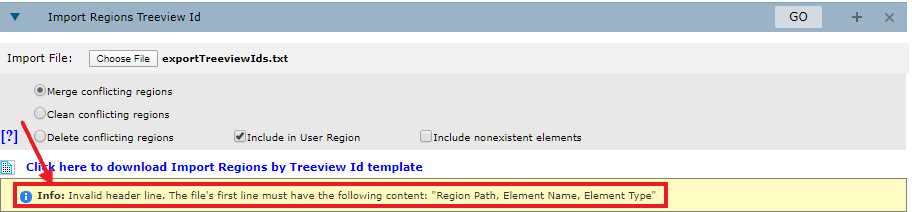
- Importing a .txt archive with data missing, such as excluding the document’s header.
- Creating a Generic Region with elements that are not from the same type. Example: using VUSN e NBIOT elements.