SHOW PARAMETERS TABLE
OVERVIEW
This function is used to show all parameters from a specific table and compare these parameter values with a reference element that the user defines.
The available tables are loaded according to selected element.
NOTE: The configuration of all parameters in NetChart is updated once a day, usually in the morning. So, the done parameter changes in the current day only can be seen in NetChart in the next update.
HOW TO USE
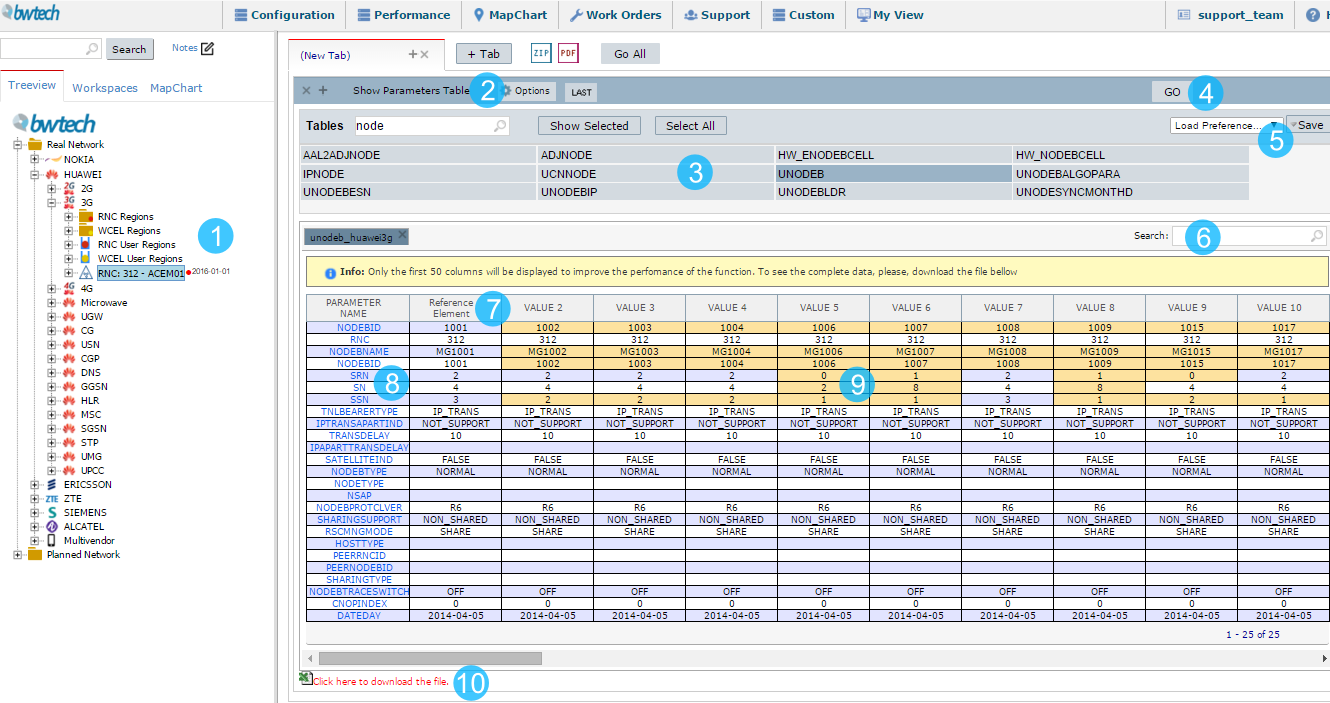
1 – Select the element to analyze the parameters.
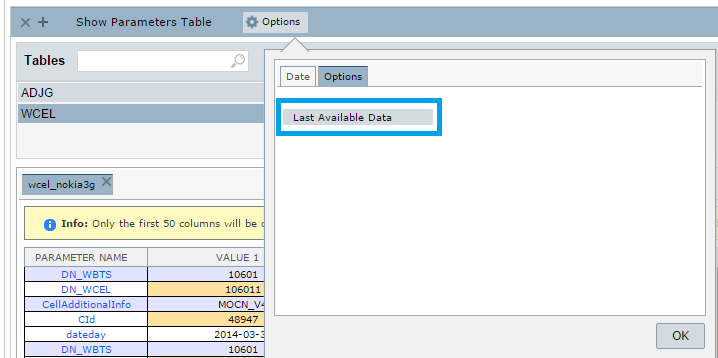
2 – In Options, it is possible to select the day that you want to see the current configuration or leave it set with the last day of data available.
3 – Select the tables whose parameters will be analyzed. It is possible to choose more than one table, and you can also use the Select All button. To see the selected tables, click at Show Selected.
4 – Click on GO to display the parameters of the selected table(s).
5 – Save the preference with tables that you use often.
6 – Search by parameter name or parameter value.
7 – You can put an element as a reference. By clicking in the column value, you choose the element as a reference value. In the image above, the first column has the reference value, and all values different from this one, are highlighted in yellow color.
8 – The name of the parameters that belong to the selected table(s). By clicking in this parameter name, its description will be showed.
9 – The values of the parameters. The selected tables come separated by tabs and in each tab, you will find the parameters corresponding to this table.
10 – Click to download the file with all generated data.
USE CASES
Compare the parameters’ values with a reference element defined by the user:
In the example below, it was selected a LAC region in order to compare the configuration of the elements belonging to this region. The third element was set as a reference, and all parameters of the other elements that have different values of my reference, are highlighted in yellow.

Some details:
1 – LAC Region selected in WCEL Region.
2 – Using the search, you can filter the parameters that have a certain word or number in its value or name.
3 – The reference element.
4 – By clicking on the parameter name, the system will show its description.
COMMON ERRORS
- Unselect the button Last Available Data and selected a day with no data in the Date tab.
- Looking for a table that belongs to a different level of elements.
NOTE: the available tables are displayed according to the selected element in the treeview.
- Looking for a table that belongs to other vendor/technology.