Contents
Subscriber Complaints – NOC IT
OVERVIEW
With the main goal to control the workflow inside the client, the Work Orders feature is a tool that helps not only to control tickets but also allows the optimization of the work and the client’s routines.
HOW TO USE
The Work Orders feature has a simple and clean interface. Through it, the NOC team can work on the IT subscriber complaints tickets created by the CCD team, follow up on its status, comments made, SLA time and more. There is also the possibility to process the tickets, assigning to the SLM team so they can work on its solution, or close the tickets and send them back to the CCD team.
On the main page, the user has an overview of the tickets and their status: the logged and closed ones and how many had their SLA breached.
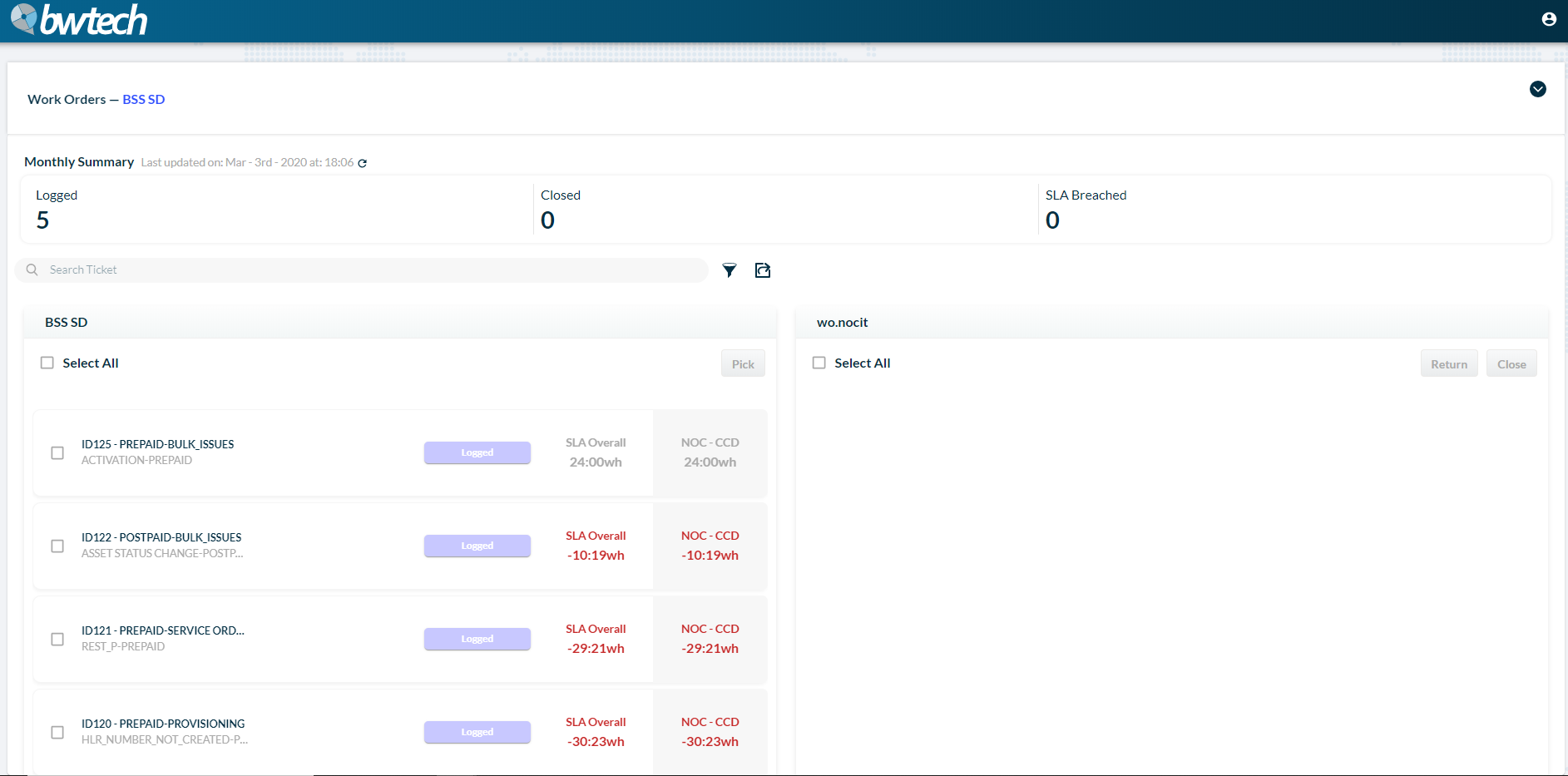
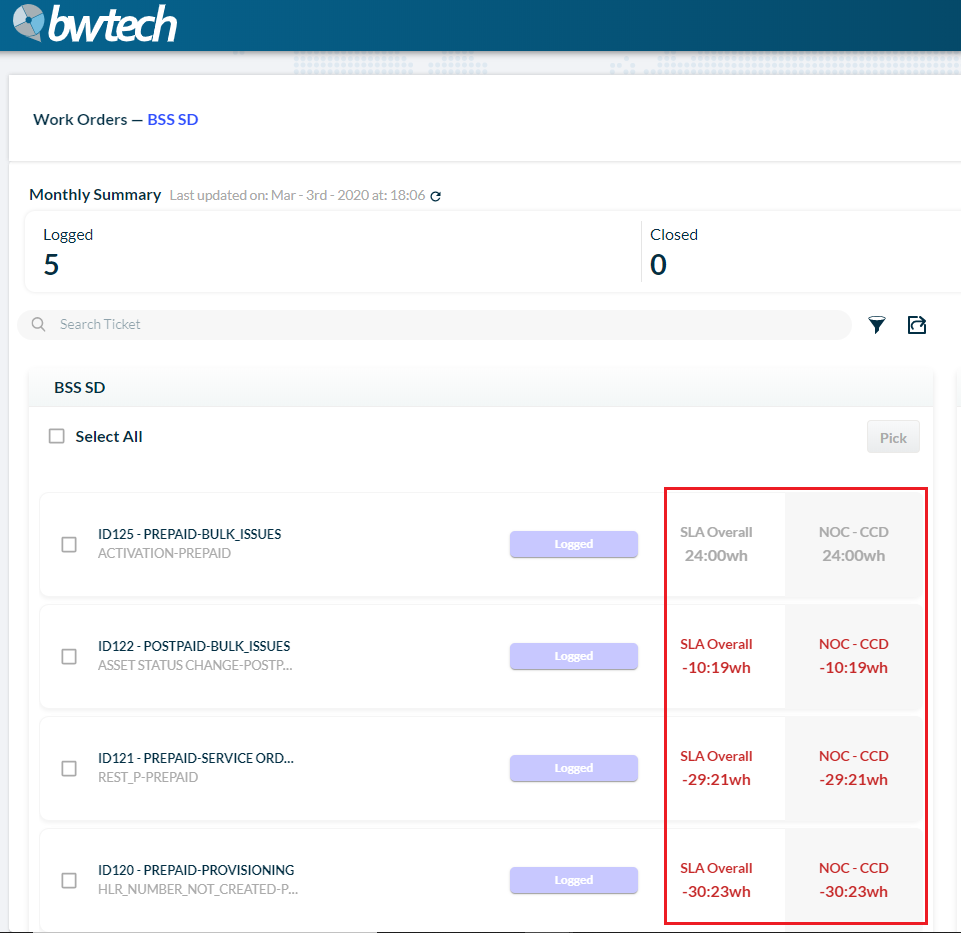
1 – There you can also see all the assigned tickets to your group, its Overall SLA time and the NOC-CCD SLA time.
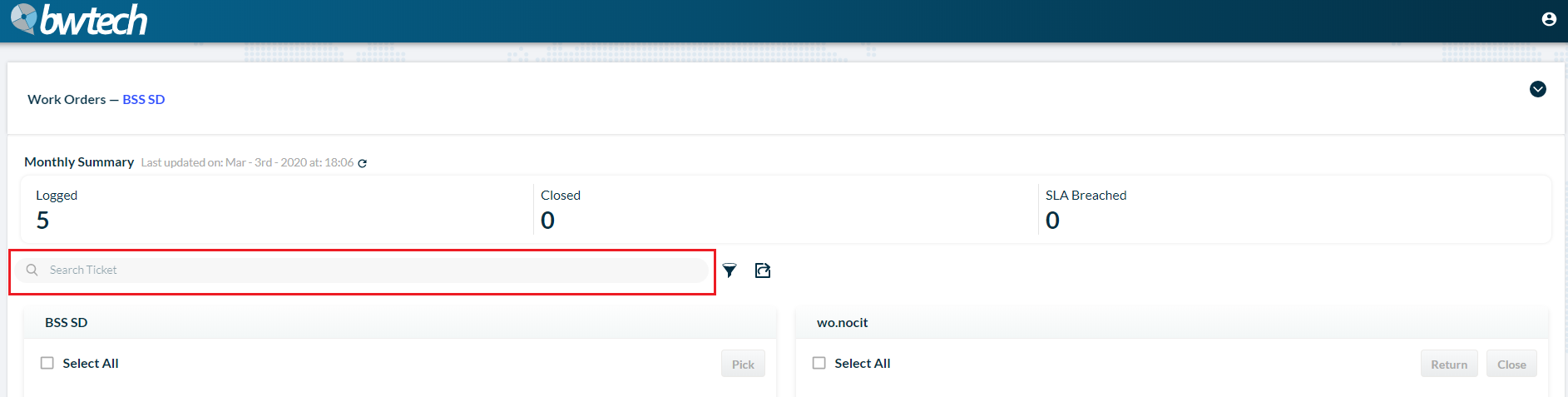
2 – To find a ticket, you can use the search bar.
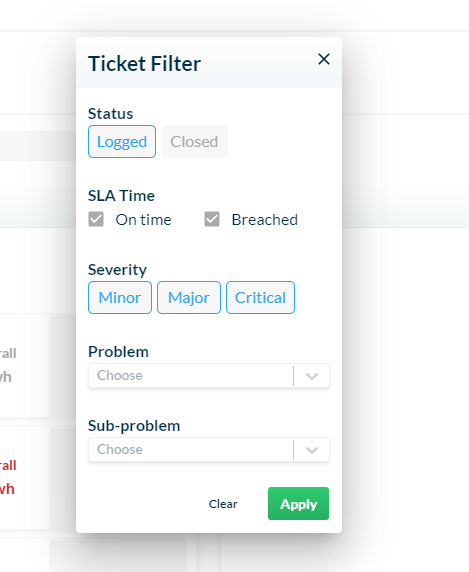
3 – And to refine your results, use the filter tool.
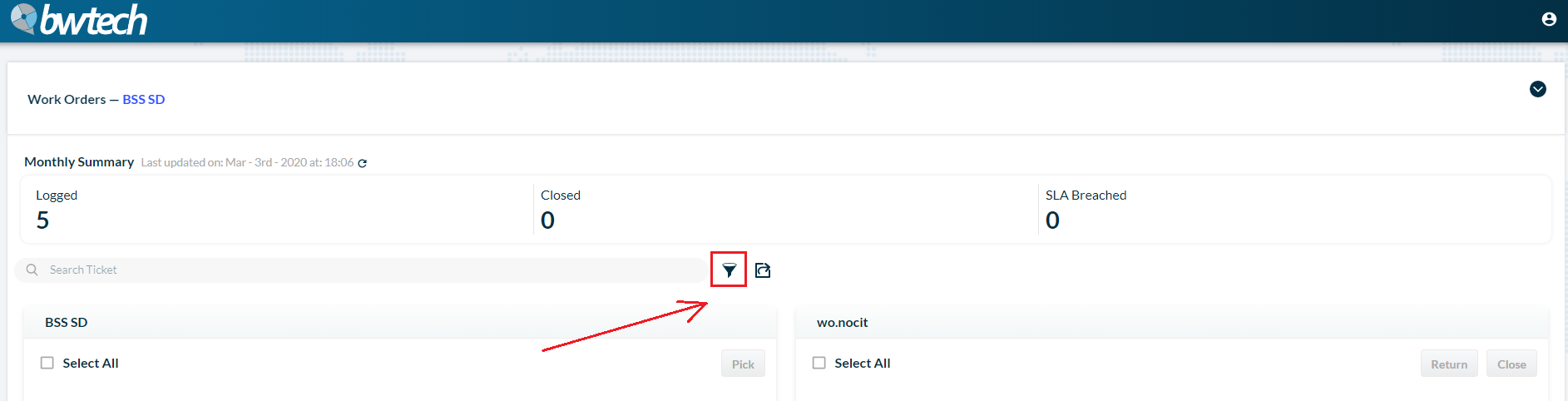
Through the filter tool, you can filter the results by status, SLA time, severity, problem or sub-problem:
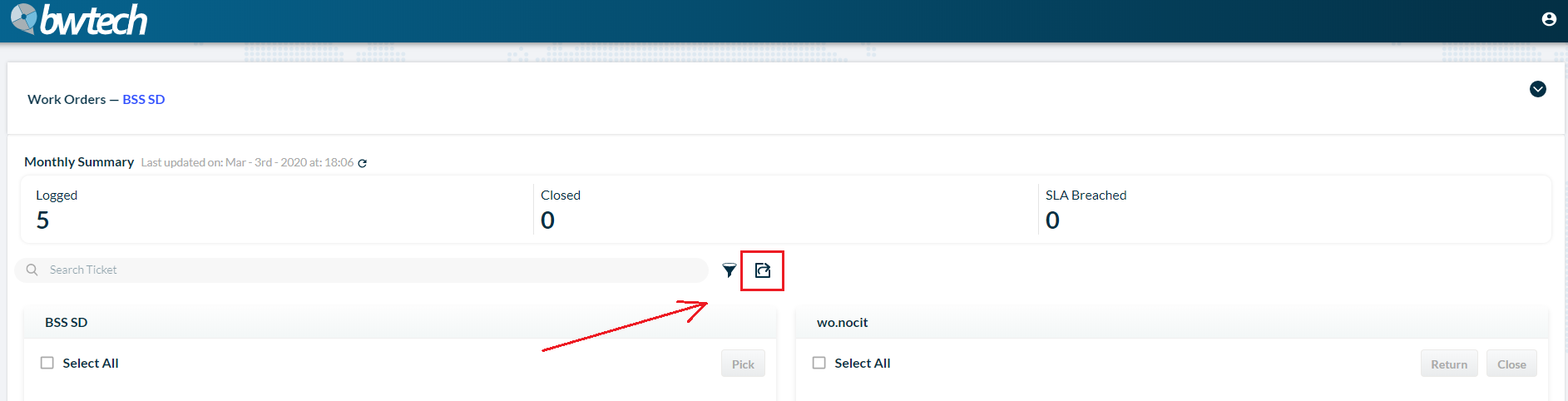
4 – You also have the option to export your data to an Excel file. Just click on the Export icon (shown in the image below) and the document will be downloaded.
Example of an Excel file:

User flow
In the IT subscriber complaints tickets, the user flow inside the system has its specific status. On the image below, you can see the whole flow and what each ticket status means:

USE CASES
Closing ticket
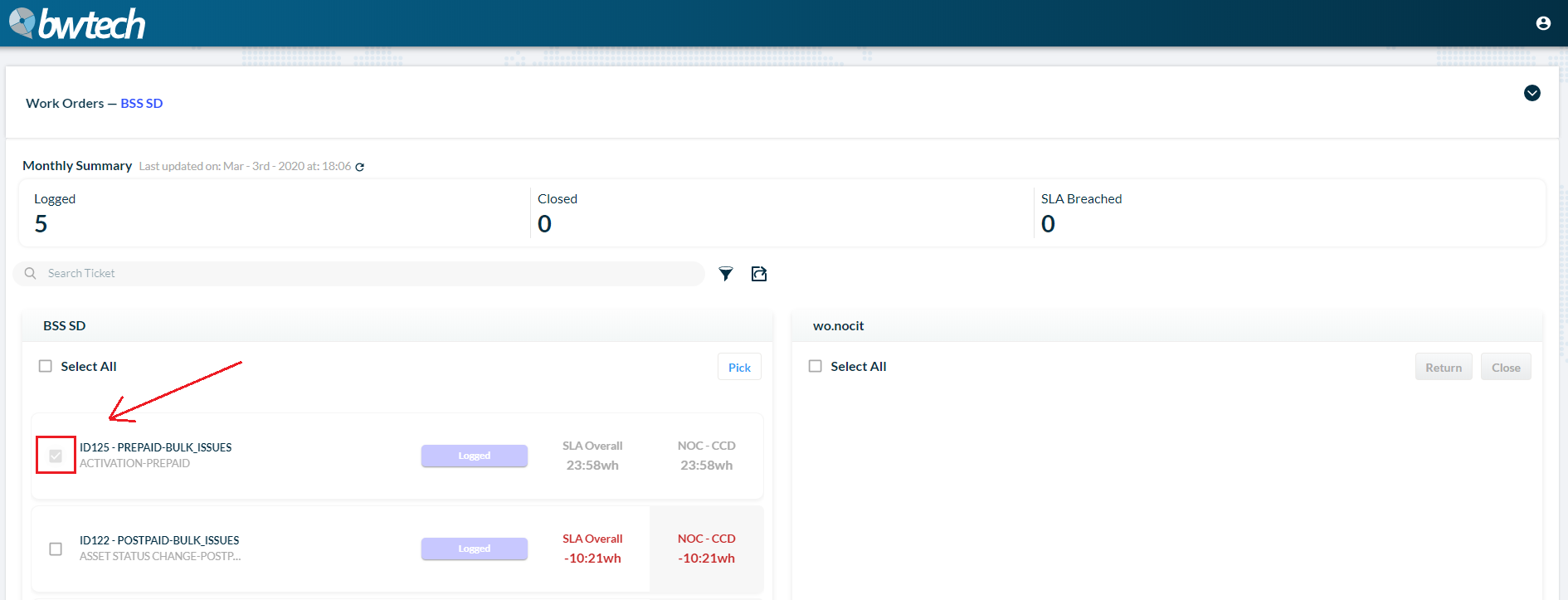
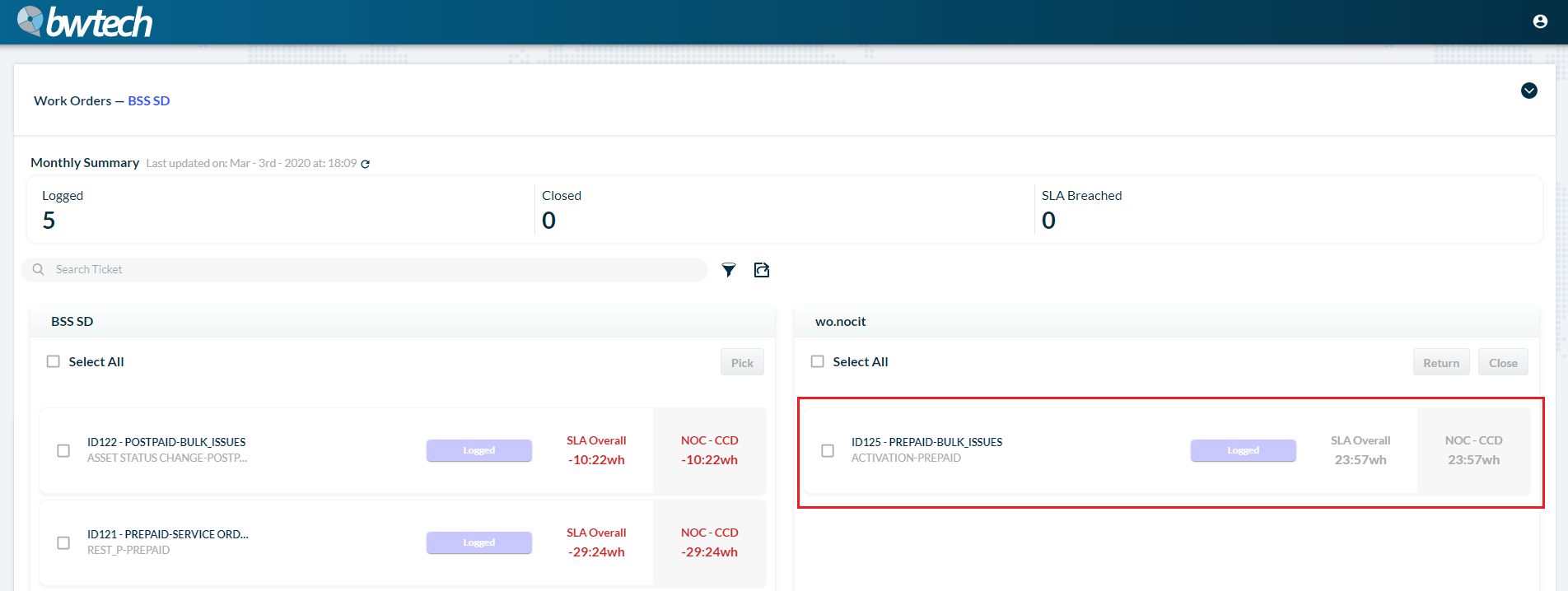
1 – First pick the tickets you want to work with and move them to your board. To do that, you just need to click on the selection box.
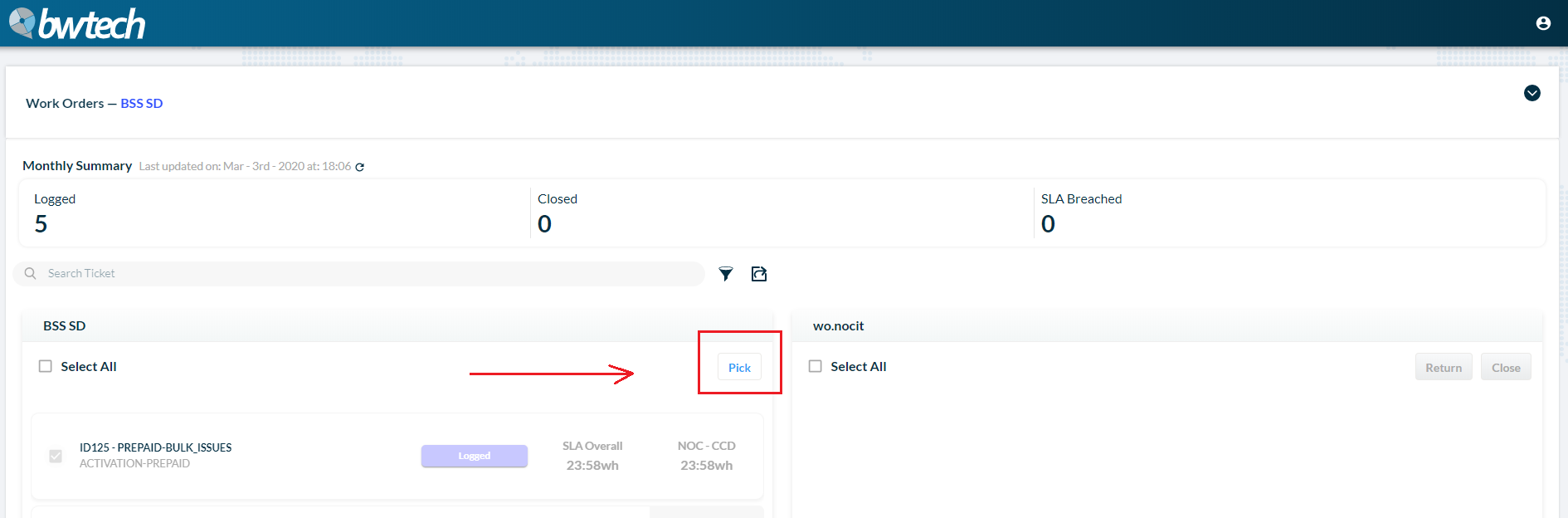
2 – After selecting the tickets, click on the Pick button.
3 – Now, click on the ticket you want to work with.
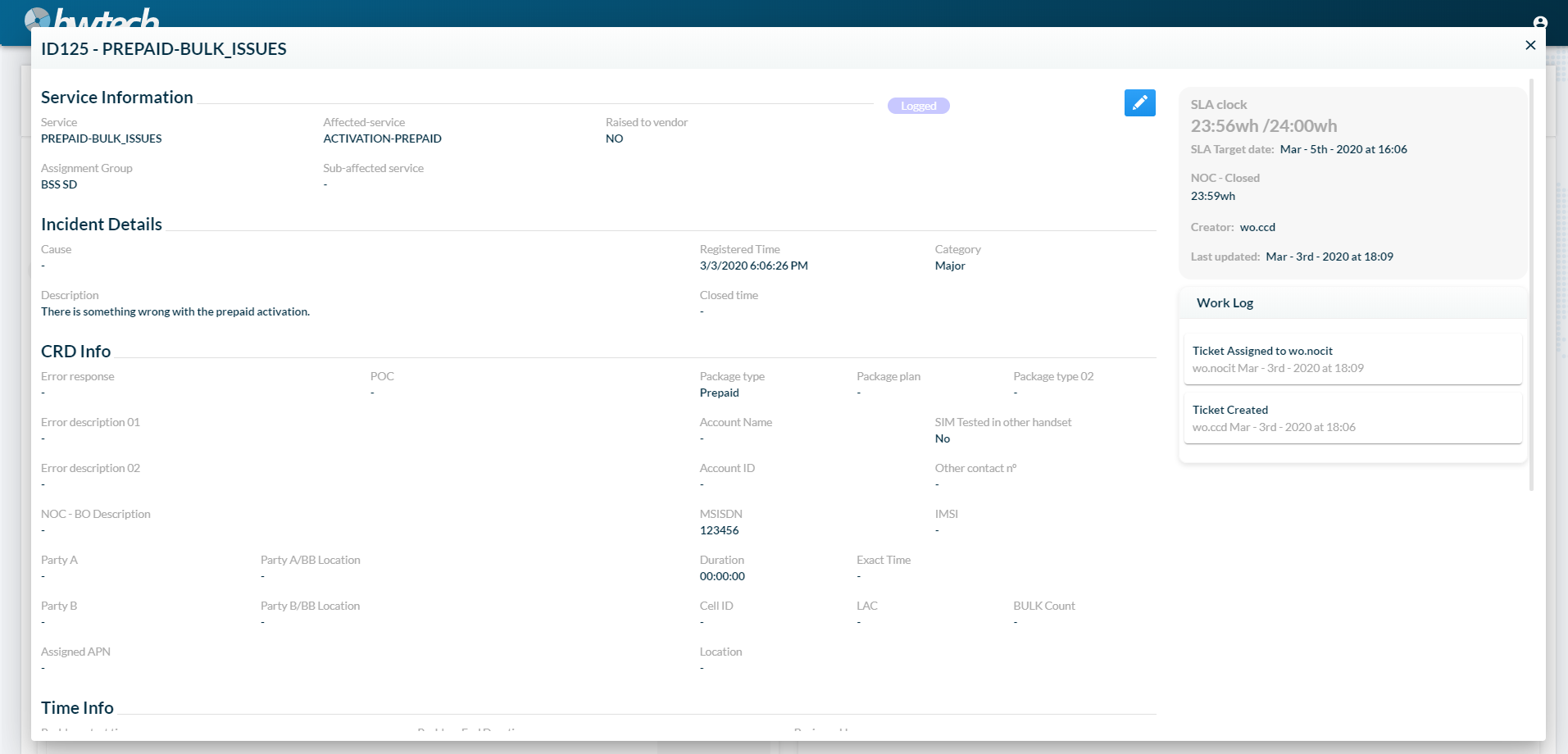
4 – A new window will open and there you can see all the tickets data.
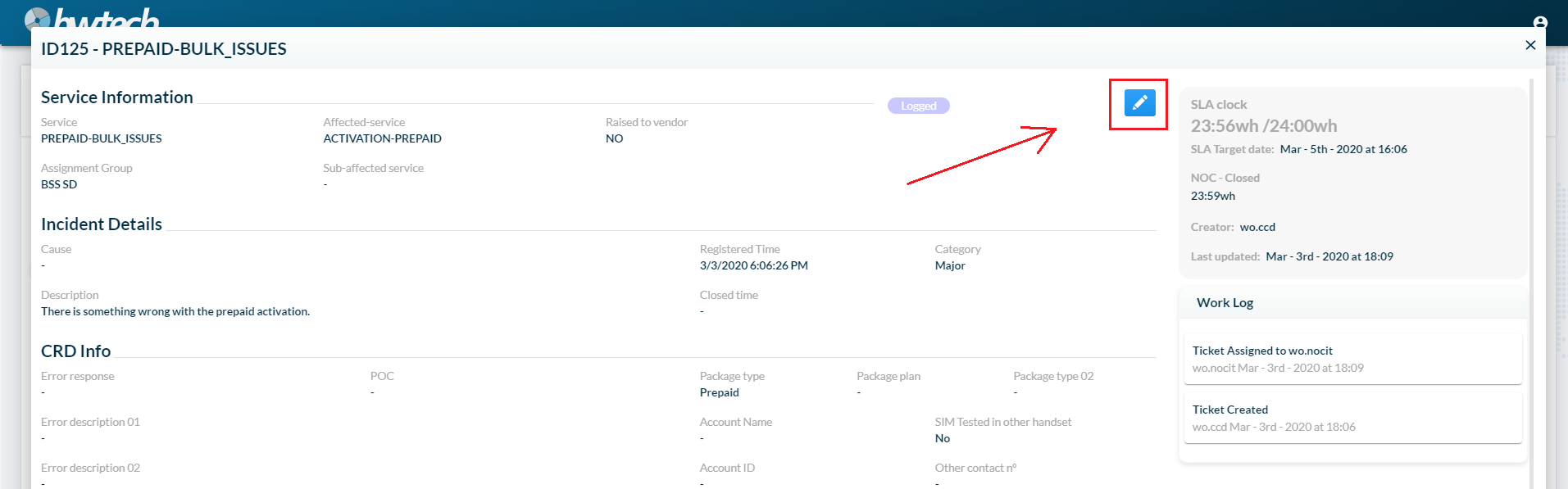
5 – To edit it, click on the Edit button.
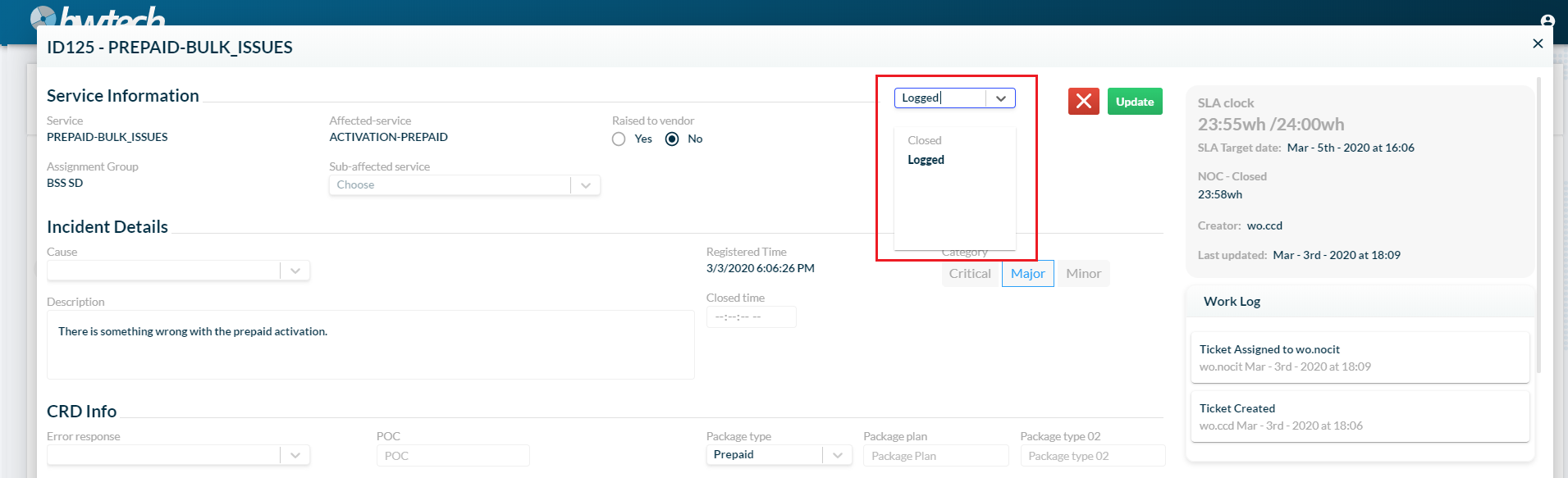
6 – You can change the ticket’s status.
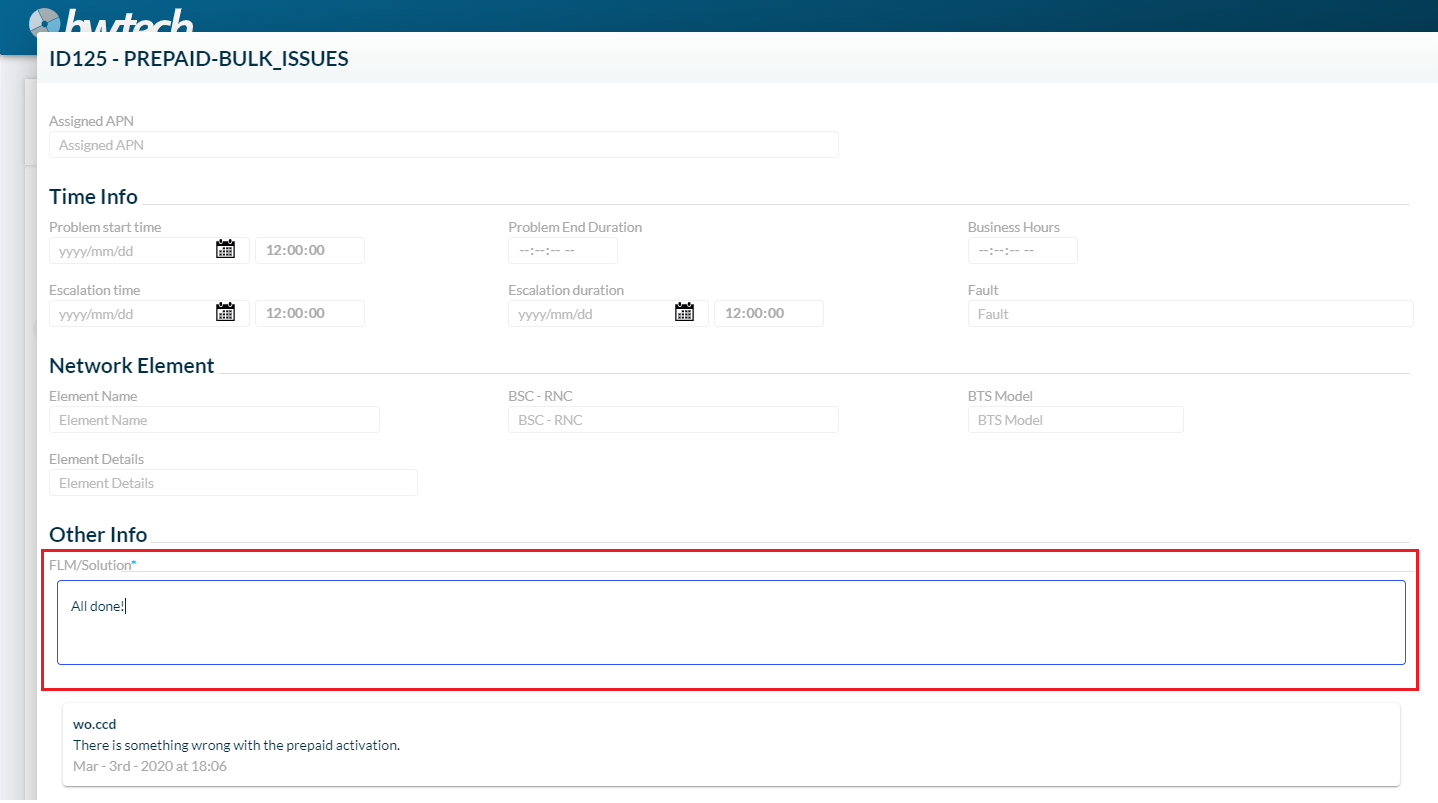
7 – Insert a new FLM/Solution data.
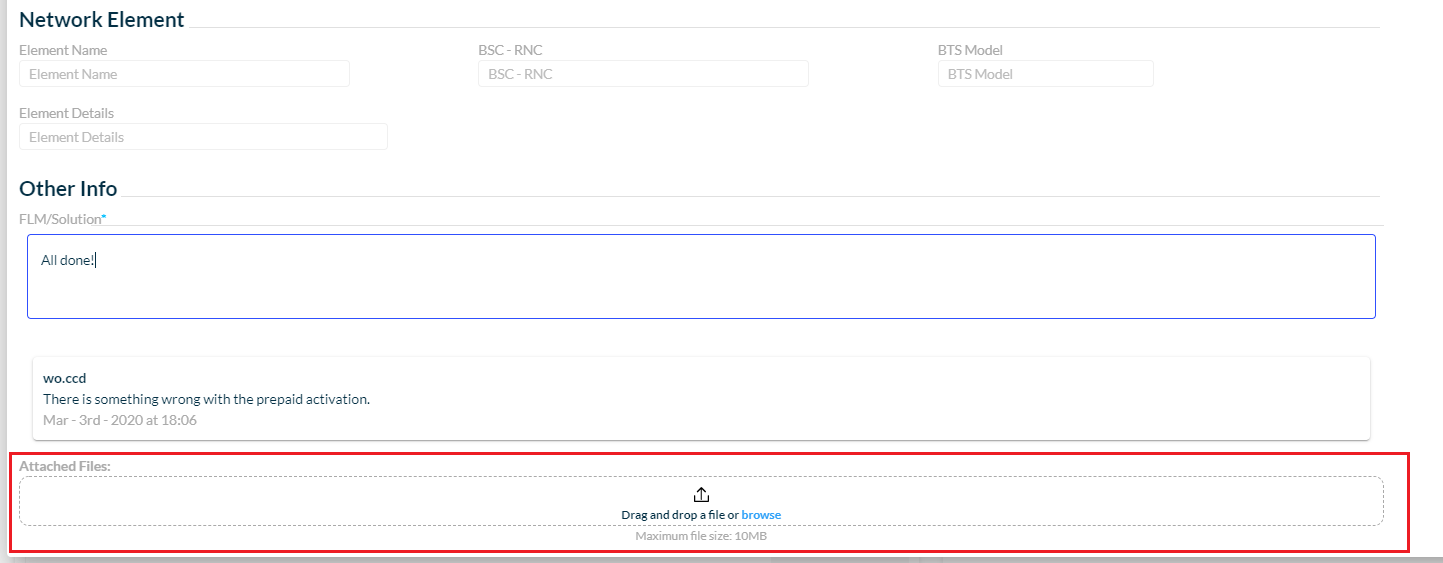
8 – Attach files.
9 – After you are finished, just click on the Update button.

Or you can cancel the changes by clicking on the X button.

10 – You’re done! Your ticket is closed.
Processing ticket
When the NOC IT team receives a ticket, they can work on it to close (as shown above) or assign it to the SLM team to solve the problem – in this case, the ticket receives the Processed status designation.
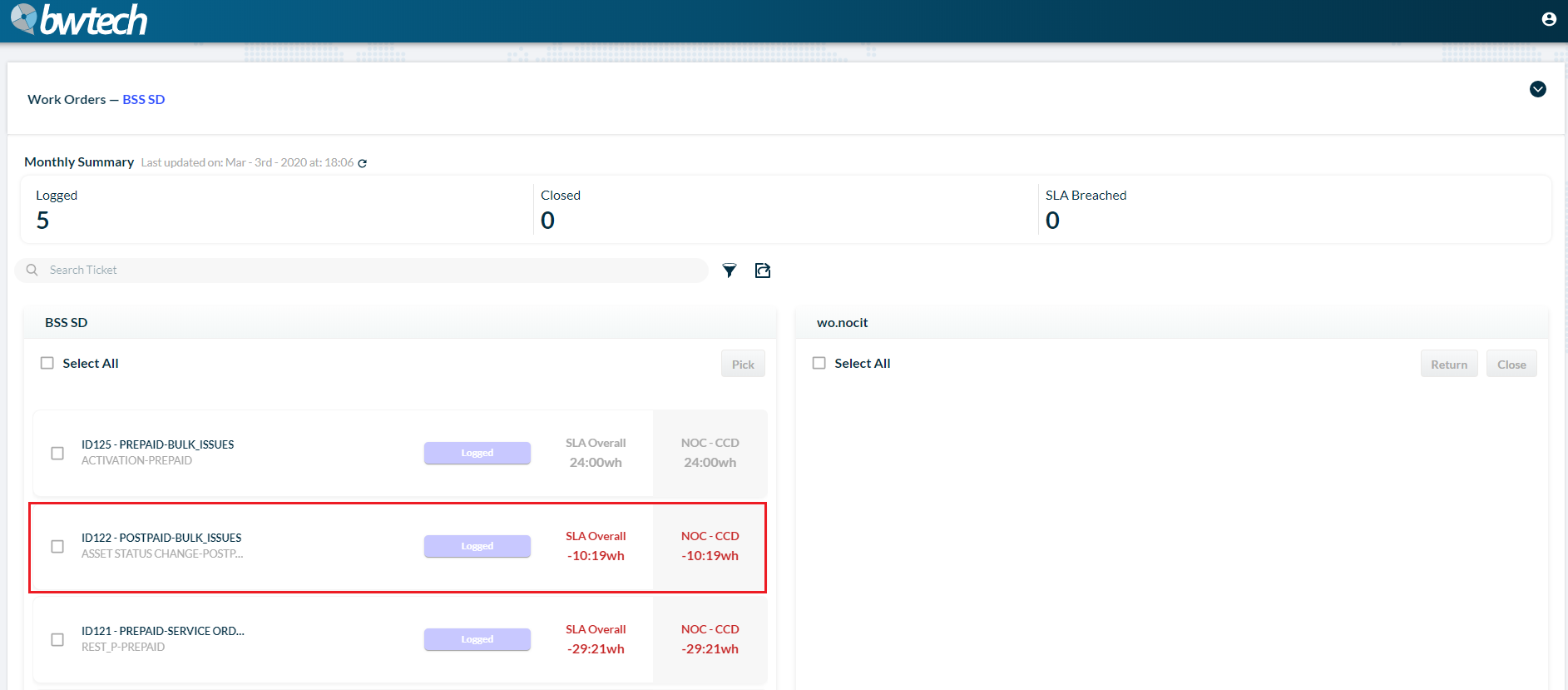
1 – First choose the ticket you want to work and click on it.
2 – A new window will open and there you can see all the ticket’s data.
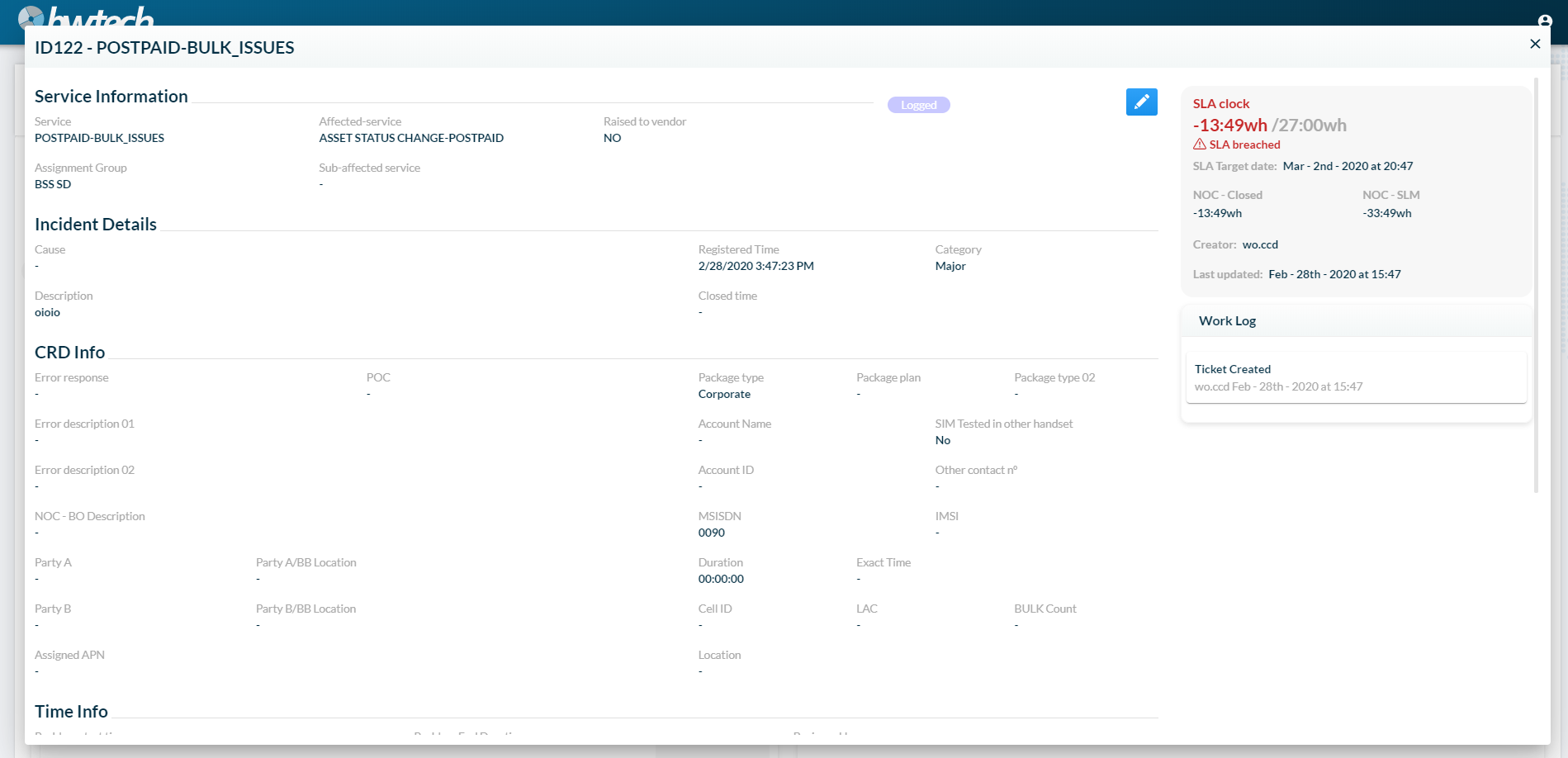
3 – To edit it, click on the Edit button.
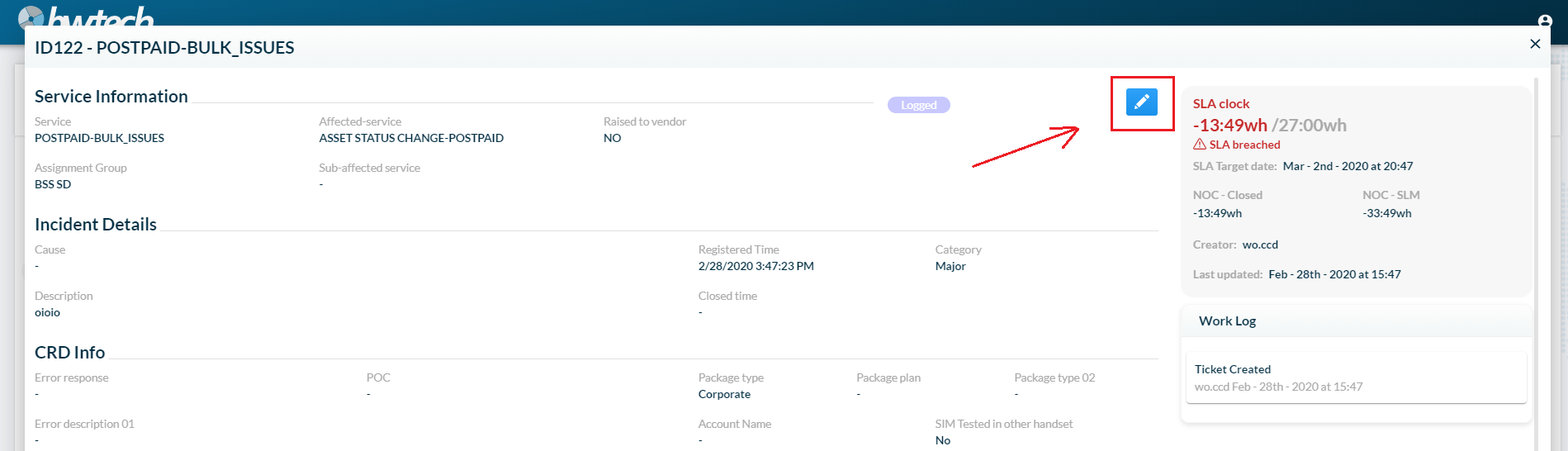
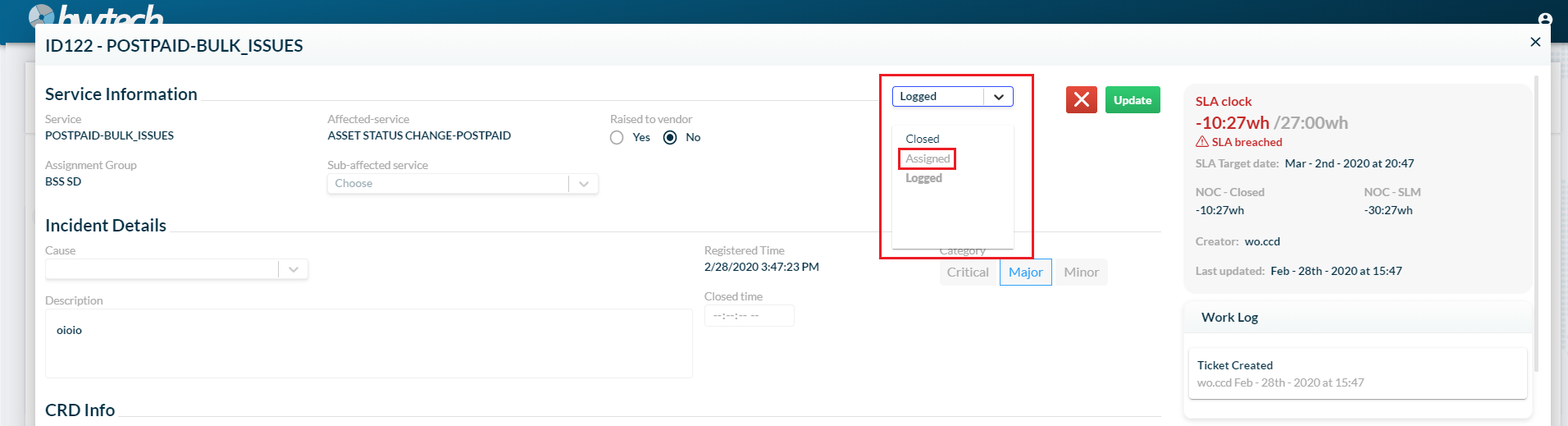
4 – You can change the ticket status to Assigned to send it to the SLM team.
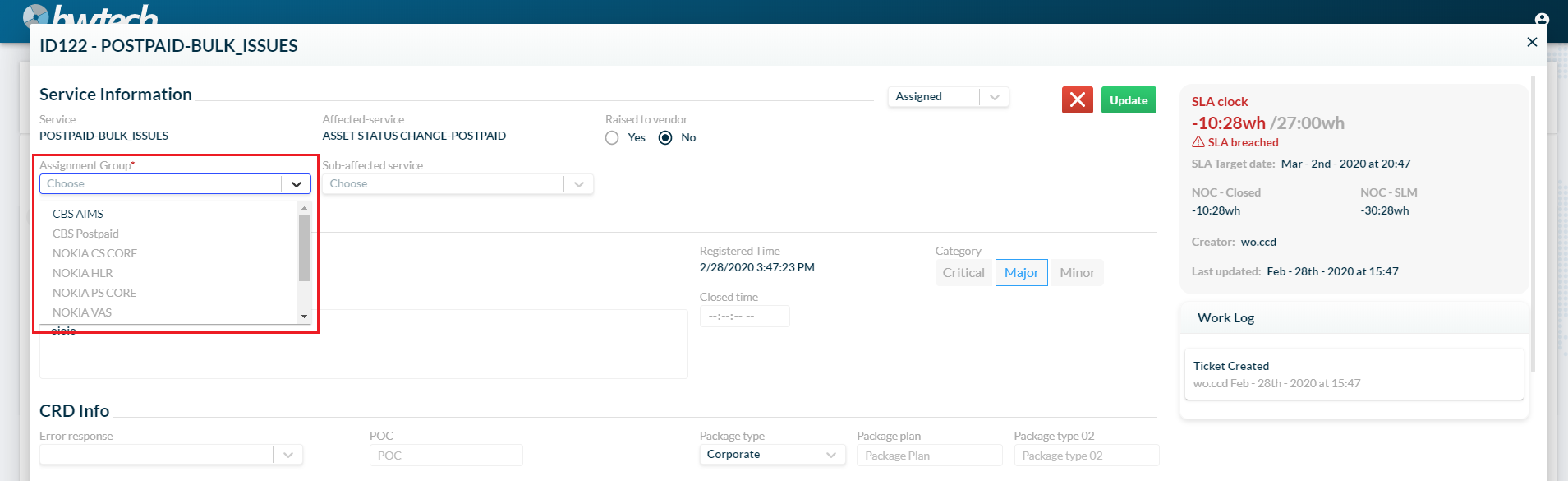
5 – Choose the Assignment Group.
6 – Insert the FLM/Solution description.
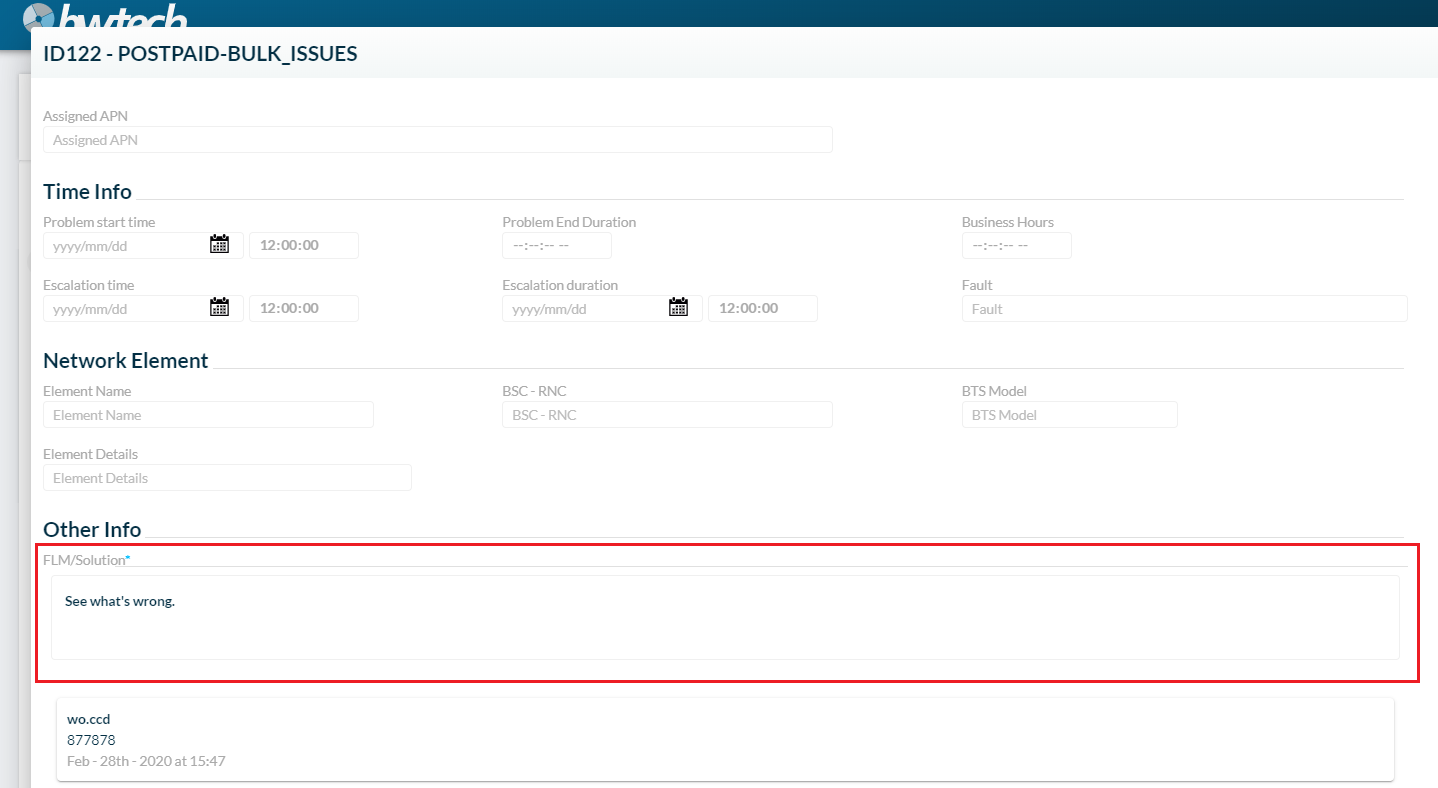
7 – You can attach files.
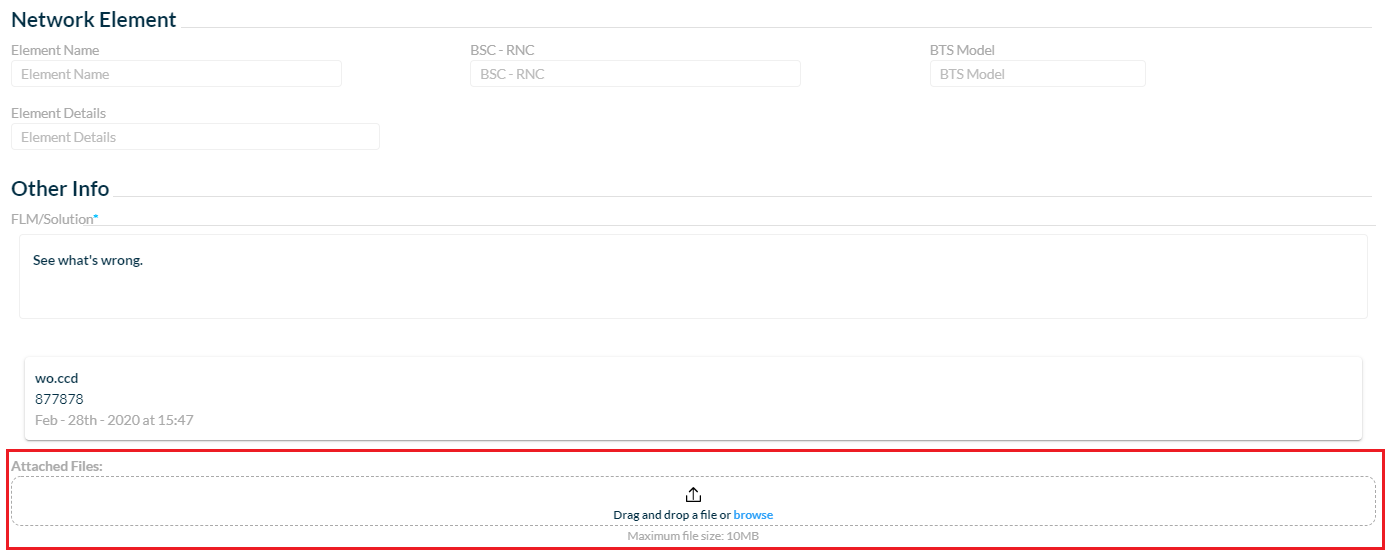
8 – And add other information in the form so that the SLM team has more data about the problem.
9 – After filling out the needed information fields, you just need to click on the Update button to save the changes.
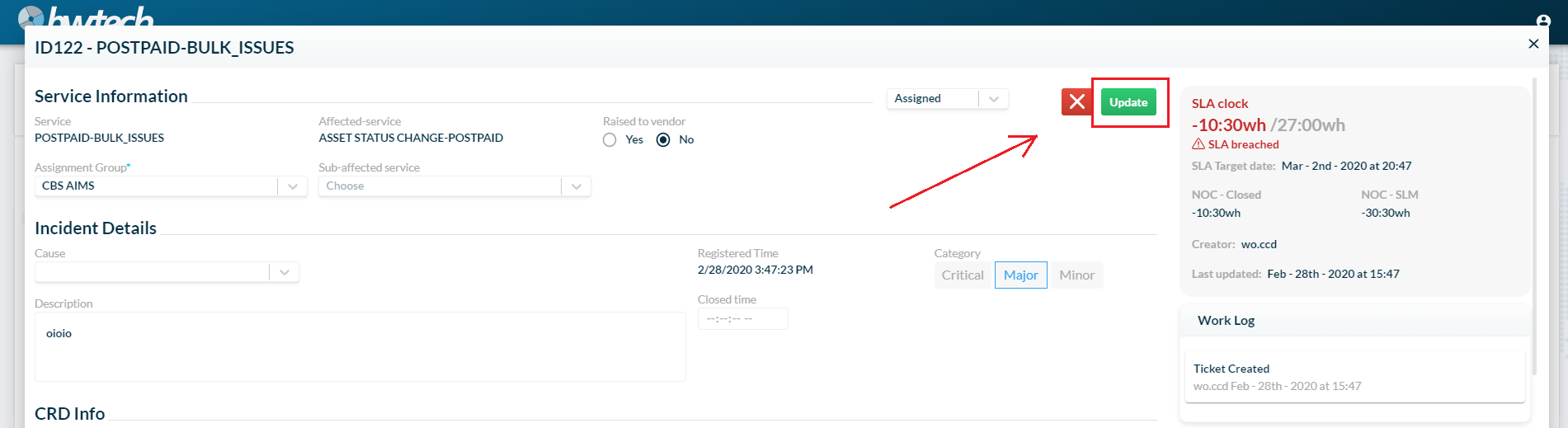
Or you can click on the X button to cancel it.
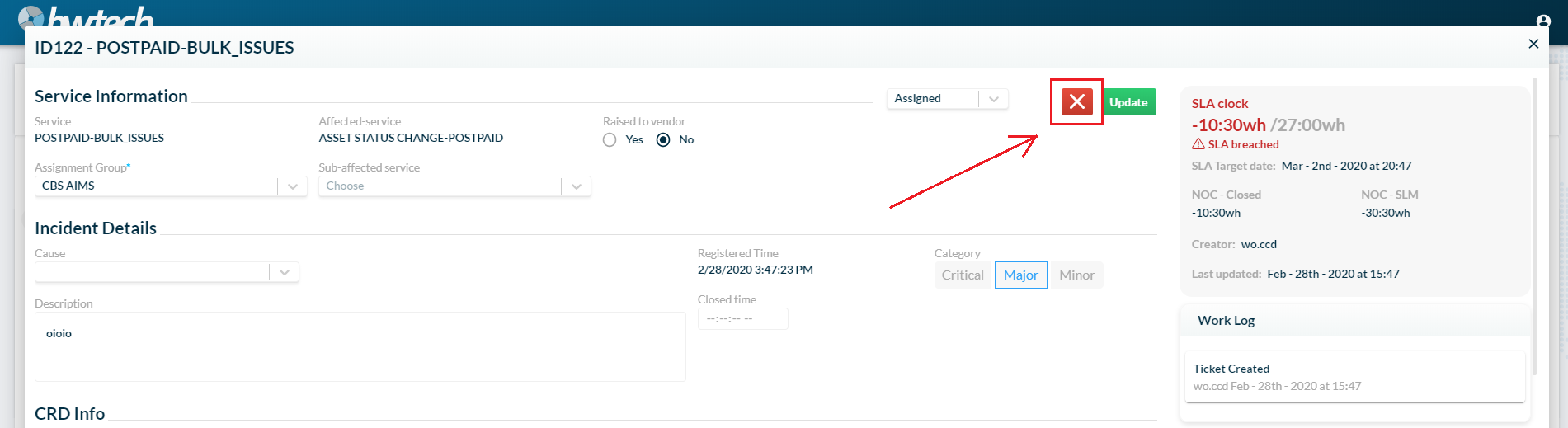
10 – That’s it! Your ticket is now processed and with the SLM team.
COMMON ERRORS
- Trying to attach a file that exceeds the 10MB limit.