Contents
PARAMETERS COMPARE
OVERVIEW
This function is used to detect parameter modifications for an element or group of elements.
For a selected element, this function will compare the parameters from all selected tables (even for tables related to elements that are children of the selected element) between the two days.
NOTE: The configuration of all parameters in NetChart is updated once a day, typically in the morning. Therefore, parameter changes made on the current day can only be seen in NetChart in the next update.
HOW TO USE
Log in to your NetChart account.
Click on Configuration and follow the path Configuration > Parameters Functions > Parameters Compare.

View the Parameters Compare screen.
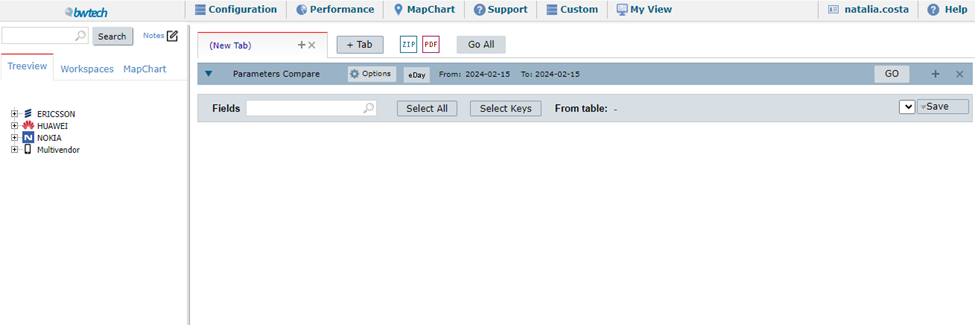
Compare parameters
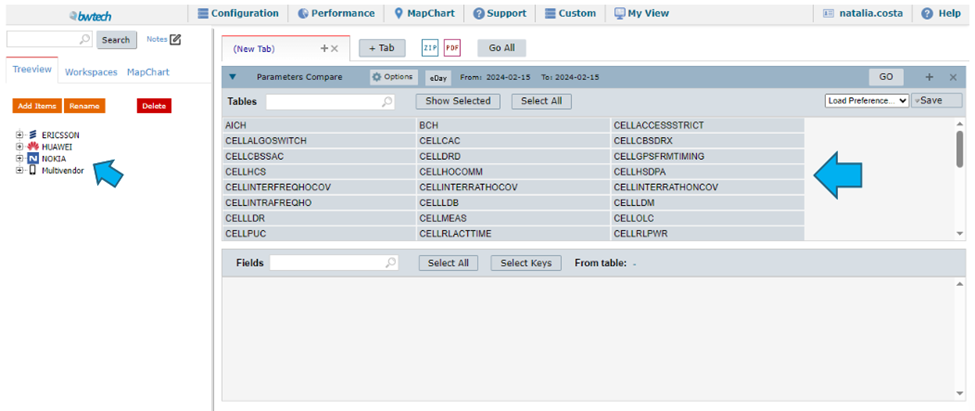
On the Treeview, select the element to compare the parameters.
Once you select the element, you will view all its tables.
Click on Options to select an interval of dates. It is divided into two tabs: Options and Dates.

On the Options tab, view:
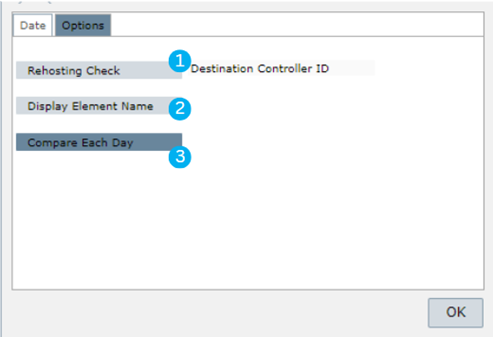
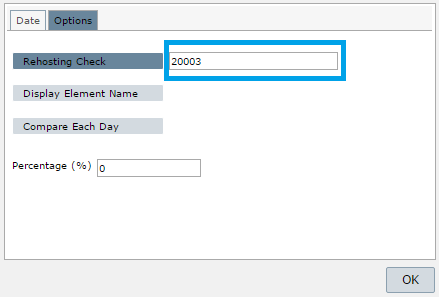
- Rehosting Check: click here to track rehosting cells (cells that already exist in the network but were relocated due to some operator-related issue). In the space provided, put in the Destination Controller ID to which the BTSs were rehomed to ignore the BTSs that do not belong to this Controller.
- Display Element Name: click here to show the element name on the results. Warning: This option might slow down the function.
- Compare Each Day: click here to compare each day between dateFrom and dateTo, which can be defined on the Date tab.
NOTE: If the Compare Each Day option is not selected, only the first and last day of the selected period will be compared.
NOTE: If the Display Element Name option is not selected, only the element ID will be shown in the results.
On the Date tab, view:
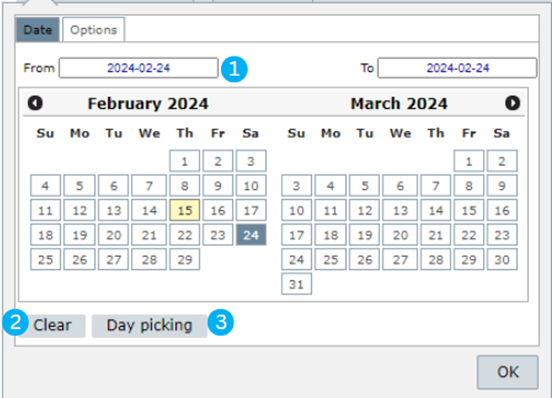
- From and To: it changes according to the dates you pick on the calendar.
- Clear: click here to clear the selected dates.
- Clear > Weekends: clear all the weekends in the timeframe selected.
- Clear > Holidays: clear all the holidays in the timeframe selected.
- Day picking: click here to manually pick individual dates.
Once you have configured the dates, use the search bar to filter the tables you are looking for.
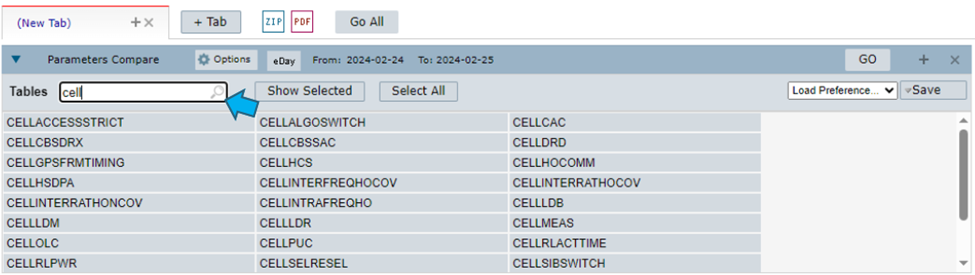
Now, select the ones whose parameters you wish to analyze.
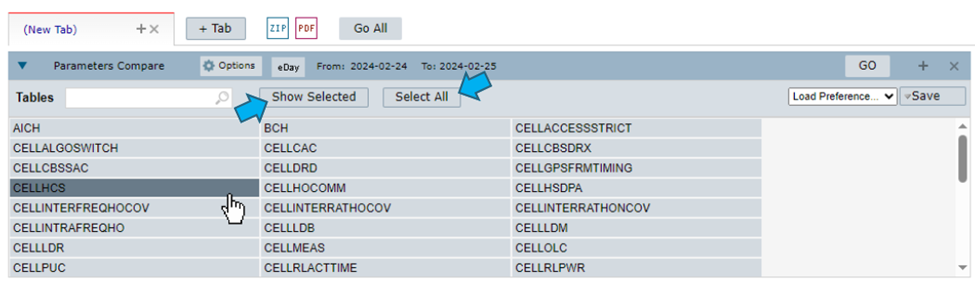
You can manually select more than one table or click on Select All to select them all at once.
To see the selected tables, click on Show Selected.
Click on Go to run the function and view the parameters comparison.
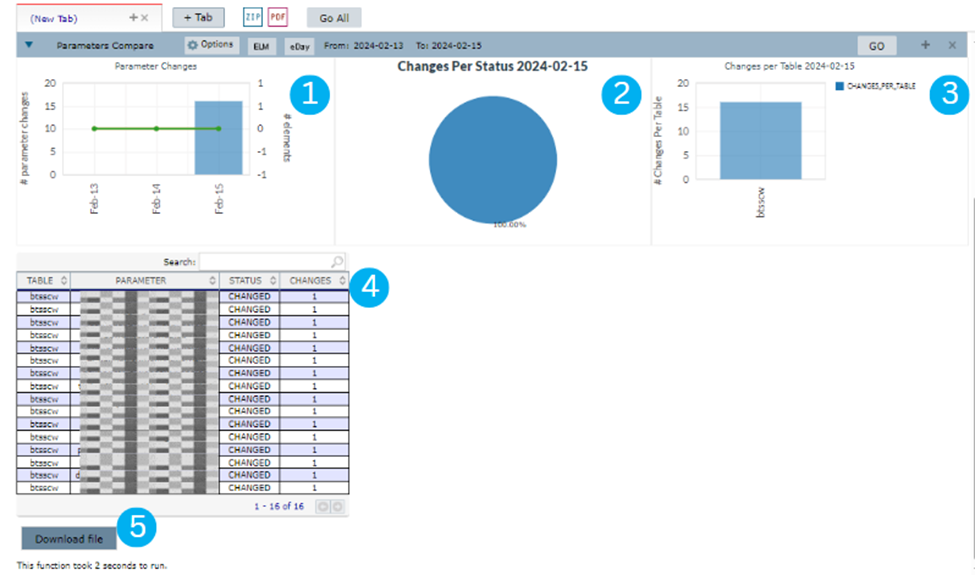
- Left Pareto Chart: Displays, for each day, a bar indicating the quantity of parameters changed, along with a green line showing elements that were deleted from one day to the next. In other cases, an orange line may also appear indicating elements created from one day to the next.
NOTE: Created Elements are those present on the last day of the selection but not on the first day. Excluded Elements are those present on the first day of the selection but no longer exist on the last day. These analyses are conducted for each type of parameter table.
NOTE: Double-clicking any line on the graph will trigger the following updates:
- The pie chart and the right pareto chart will be updated to reflect the selected day.
- The summary table (below the charts) will also be updated to reflect the selected day.
- Pie Chart: Illustrates, for the selected day, the number of parameter changes, deletions, and element creations.
- Right Pareto Chart: Shows, for the selected day, the number of parameter changes per table.
- Results table: Summary table presenting results categorized by Table, Parameter Name/ID, Status, and Changes columns.
NOTE: Use the search bar in the table to search for parameter names or tables.
- Download button: click here to download a file with the results details.
USE CASES
The image below helps to understand the way this function works. Let’s say that CELL_ABC and CELL_XYZ belong to the same RNC. By selecting this RNC and running the function for the WCEL table between days 2016-01-01 and 2016-01-05, the results would be the parameters that had their values changed between the selected dates for all elements in the WCEL table – which are children of the selected RNC.
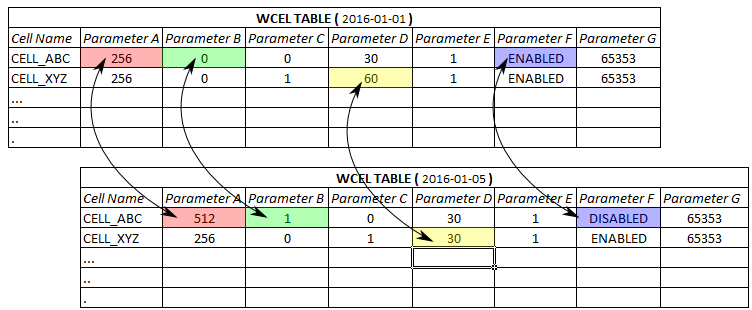
In the case of the image below, the output file generated by the function would have the parameters A (from 256 to 512), B (from 0 to 1) and F (from ENABLED to DISABLED) for CELL_ABC and parameter D (from 60 to 30) for CELL_XYZ. If any WCEL element had been created (or removed) in this RNC between the selected days, it would also be listed in the output file.
NOTE: There are two types of output file formats:
- If the Compare Each Day option has been selected and comparisons are made for each day between dateFrom and dateTo.

- If the Compare Each Day option is disabled and only the first and last days of the selected period are compared.

Rehoming cases
This is a special option for this function. It can be used to check parameters from a group of cells that were rehosted. A rehosting operation, from the point of view of the database, could be handled as a parameter modification and it would also be detected by this function.
Sometimes, even after a rehosting operation is successfully made, the database entries for the old BTS are not deleted. Only the new entries are created. Let’s take a look at the image below as an example.
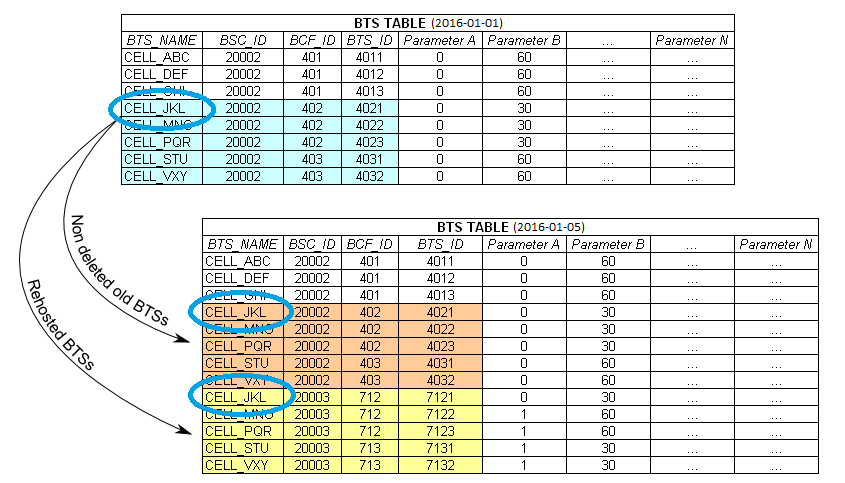
In the image, we can see a group of BTS that was rehosted from BSC_ID 20002 to BSC_ID 20003 between 2016-01-01 and 2016-01-05.
As we can see, the old BTS wasn’t deleted from the database in 2016-01-05 (orange-colored lines in the image).
In this case, the table BTS will contain duplicated names for some cells. If we do not check the Rehosting Checkbox, the function will get confused by the duplicated names and return a warning informing that some BTS names are duplicated.
By checking the Rehosting Checkbox and typing the ID of the Destination Controller (in this case 20003), all BTS from other BSCs are going to be ignored by the function and only the yellow-colored lines would be used to make the parameters comparison.
NOTE: Rehosting refers to the relocation of a cell due to some operator-related issue.
COMMON ERRORS
- Looking for a table that belongs to a different level of elements.
NOTE: the available tables are displayed according to the selected element in the treeview.
- Looking for a table that belongs to other vendor/technology.
- Looking for changes day by day, without selecting the button Compare Each Day.