Contents
TROUBLE TICKETS
OVERVIEW
This feature can be used when you desire to contact our support team due to some doubts, suggestions, and bugs.
HOW TO USE
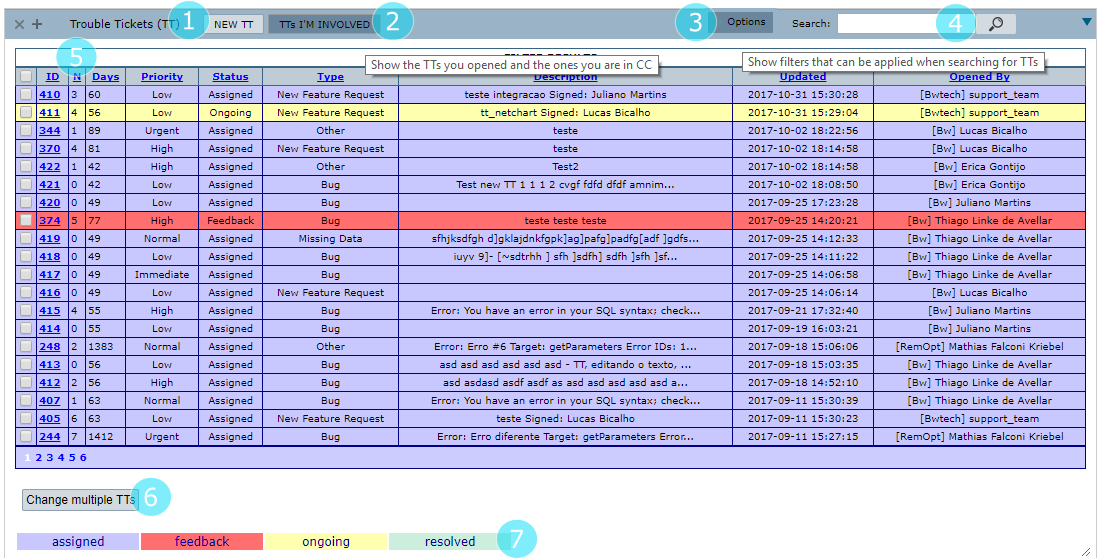
1 – Click to create a NEW ticket.
2 – Click to monitor the tickets that you are involved in.
3 – Click to show the filters that can be applied when searching for TTs.
4 – Click to search for some specific TT ID or word inside the TTs.
5 – Trouble Tickets resume.
6 – Click to change multiple TTs once. For changing select the TTs checkbox.
7 – Trouble Ticket’s status.
FUNCTIONS DESCRIPTION – OPENING A NEW TT
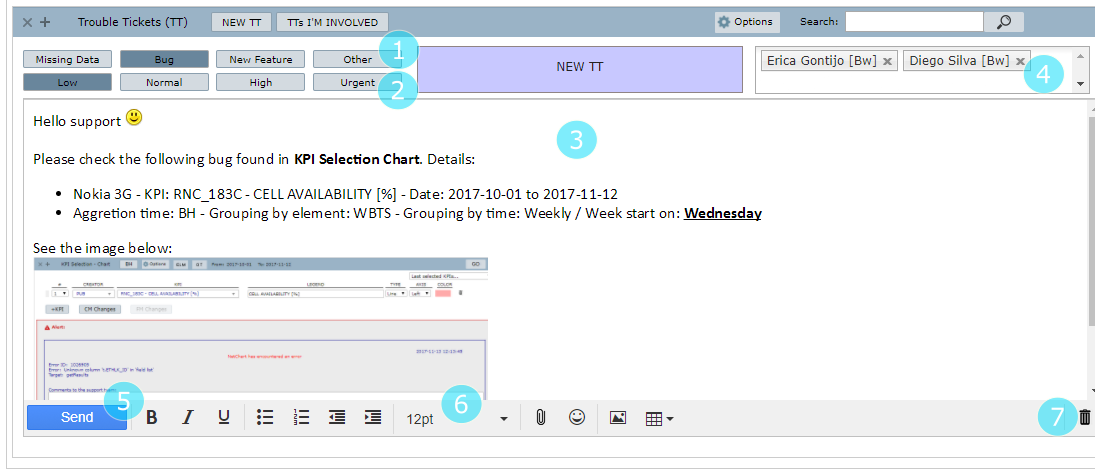
1 – Define the TTs type. MISSING DATA, BUG, NEW FEATURE, OTHERS (see the topic Types below).
2 – Define the TTs’ priority. LOW, NORMAL, HIGH, URGENT (see the topic SLA below).
3 – Describe your ticket as detailed as possible.
4 – Include people that will follow the opened TT.
5 – Click to create a NEW TT.
6 – Formatting options.
7 – Click to CANCEL the TT.
TICKETS OPTIONS
Filters
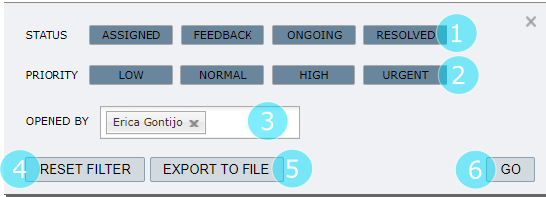
1 – Filter by the TT status.
2 – Filter by the TT priority.
3 – Filter by the person (people) how open the TT or is(are) involved in.
4 – Click to clear the set filters before.
5 – Click to Export all TTs that attend to a defined filter.
6 – Click to save the filter choices.
SLA
Effective support of in-scope services is a result of deployment and maintaining consistent service levels. The following sections provide relevant details on service availability, monitoring of in-scope services, and related components.
Priority Definitions
| Urgent | High | Normal | Low |
| The urgent priority is a failure the demands immediate actions, may cause irreversible damage to the project, may cause database corruption, is causing the system to be offline. | High priority is a failure that blocks the service itself, a whole module is not working (PM, CM, alarms). | Normal priority is a failure that blocks a routine operation, failure at any fundamental function, aggregation divergence. | Low priority is a low impact failure, with a simple workaround on the tool. |
Priority Examples
| Urgent | High | Normal | Low |
| Cannot connect to NetChart, all functions are unavailable. | Not possible to perform any query at all, all the configurations functions are not working, the system is so slow that it prevents the work itself. | Not possible to query data at any other level then Network, a bug in fundamental reports, bug at download raw counters function, bug at KPI creation function. | Presentation layer failure, with no prejudice to data integrity. Function error bug (generated with ‘yes’ click). |
The next table presents the data integrity classification:
| Failure | Technology | Controller | Element/Table/Counter |
| Offline | Urgent | High | Low |
| +15% of the week | High | Normal | Low |
| -15% of the week | Normal | Low | Low |
Types
|
Type |
Missing Data | Missing some data fields. |
| Bug | A problem or bug in some function. It is important to report the specific condition the bug happened, so our team can reproduce it and solve it. Try to describe systematically what you did that led you to the bug. | |
| New feature | A function that does not exist yet but is useful and you want to be implemented in the tool. | |
| Other | Any other subject concerning NetChart or the project that does not fit in any of the previous categories. |
Status and flow
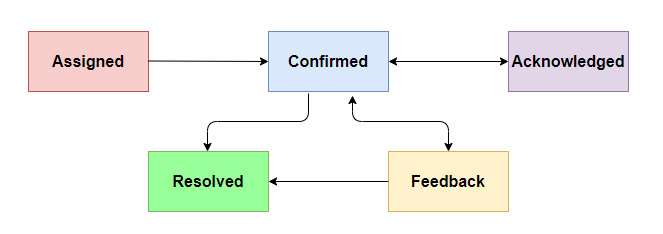
All the TT inside the system have specific status and they follow a pre-defined flow.
Status
- Assigned: The ticket receives this status whenever it is raised and created in the system.
- Confirmed: This status means that the engineer started working on the TT.
- Acknowledged: When the TT is raised to another team required to solve it, it receives this status.
- Feedback: The TT receives this status when the team needs more information from the customer about the ticket to better understand and address it.
- Resolved: This status means that the TT request is met or not possible to execute. The Resolved state also allows the customer to reopen the ticket if the answer or solution is not adequate.
Flow