Contents
SCHEDULER
OVERVIEW
The Scheduler feature allows NetChart’s users to schedule the execution of tasks, such as Charts and Reports.
HOW TO USE
After login, click on Configuration in NetChart’s menu.
Then, select Scheduler.

In the new tab, are shown:
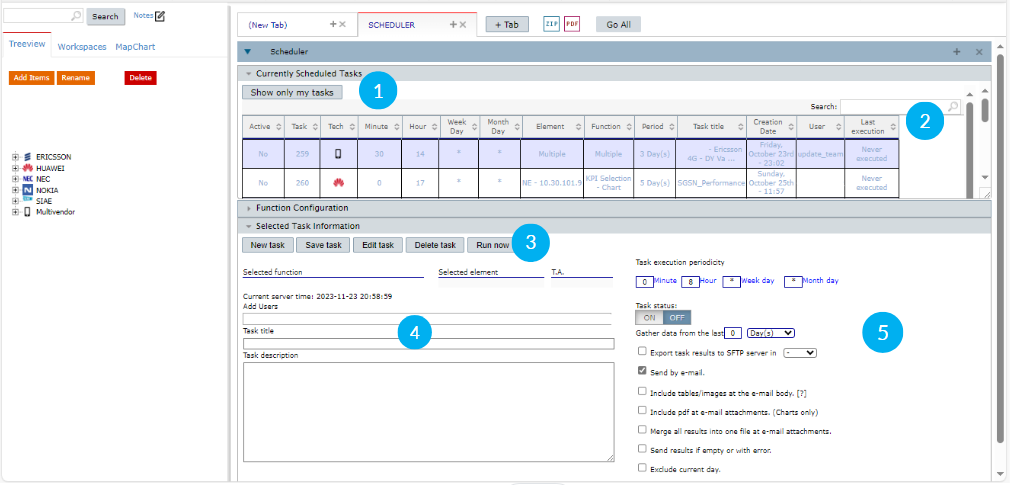
1- The currently scheduled tasks.
2- A table with all tasks and details, such as schedule and creator.
3- The Scheduler options.
4- The task information fields.
5- The task periodicity fields.
FUNCTIONS DESCRIPTION
CURRENT SCHEDULED TASKS
Click on the Expand button to see or hide the scheduled tasks.
Click on the button below the Current Scheduled Tasks to change the tasks displayed criteria. It is possible to choose between seeing all tasks or seeing only the tasks created by the user.
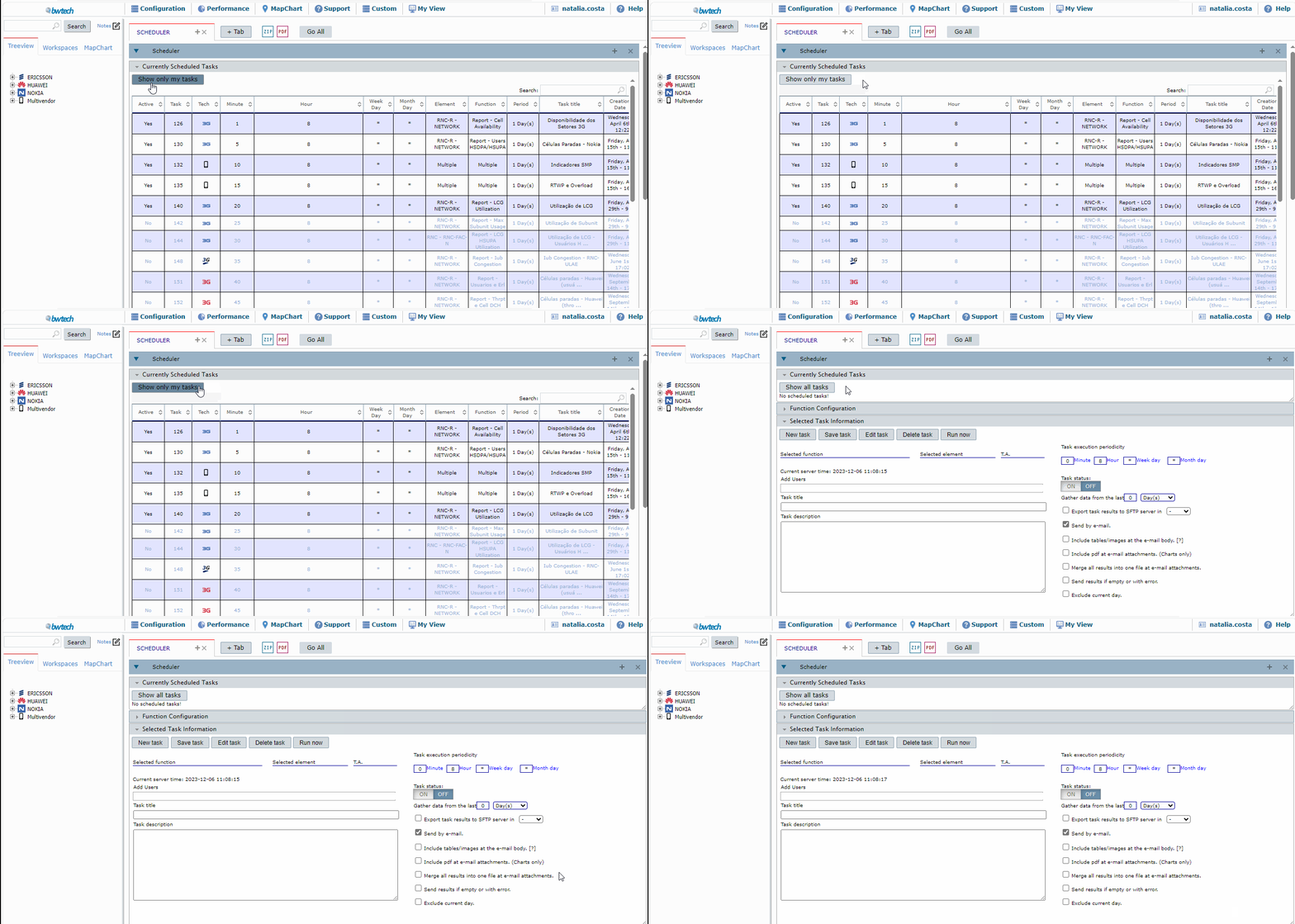
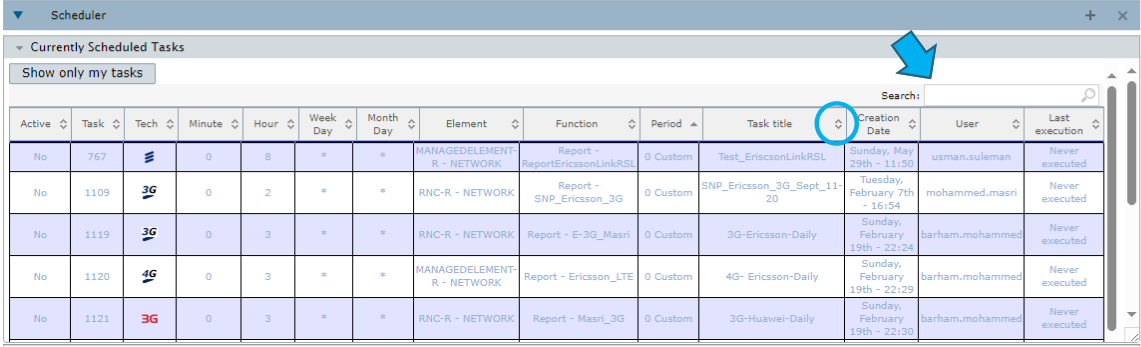
In this tab, it’s also possible to sort the columns by clicking on the arrows next to their titles and to create a filter by searching for words through the search, bar located in the top right corner of the screen.
The scheduled tasks’ table contains:
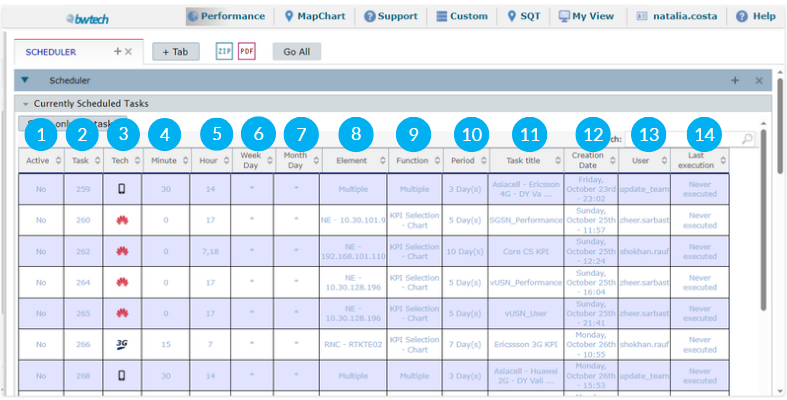
1- The task status – if it is active or not.
2- The task ID.
3- The task technology.
4- The minute of the scheduled task execution.
5- The hour of the scheduled task execution.
6- The weekday on which the scheduled task will be executed.
7-The month day on which the scheduled task will be executed;
8- The element that the task will consider.
9- The scheduled task function.
10- The scheduled task period.
11- The task title.
12- The task creation date.
13- The task creator.
14- The task’s last execution.
SELECTED TASK INFORMATION
SCHEDULE A NEW TASK
Click on the New task button and select a function on the NetChart’s menu.
(See more about all the functions on the Help’s page)
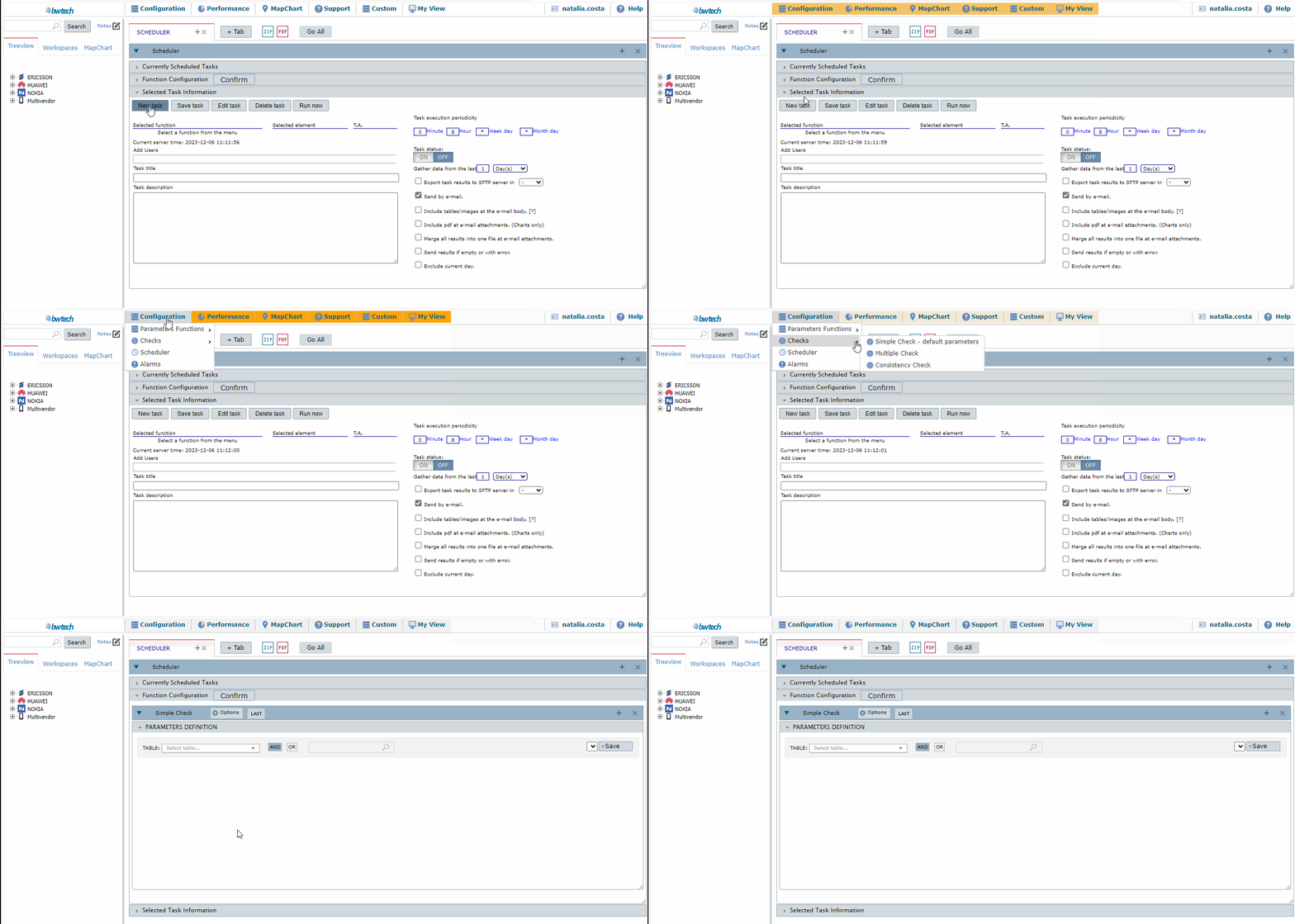
Click on Confirm to add the function.

NOTE: The function will be displayed at Select Task Information.
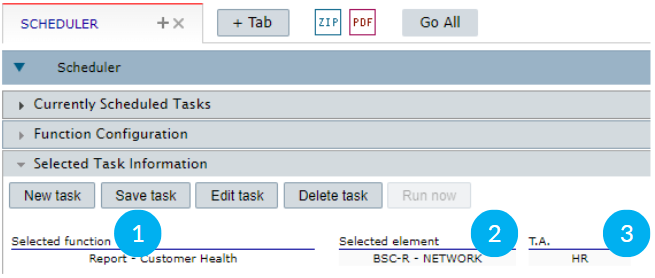
1- See the selected function.
2- See the selected element.
3- See the Time Aggregation.
To add a new function, click on the + button.
After configuring the function, click on Add User and select the users who will be notified about the task.
Write the notification subject in Task Title and add a description in Task Description.
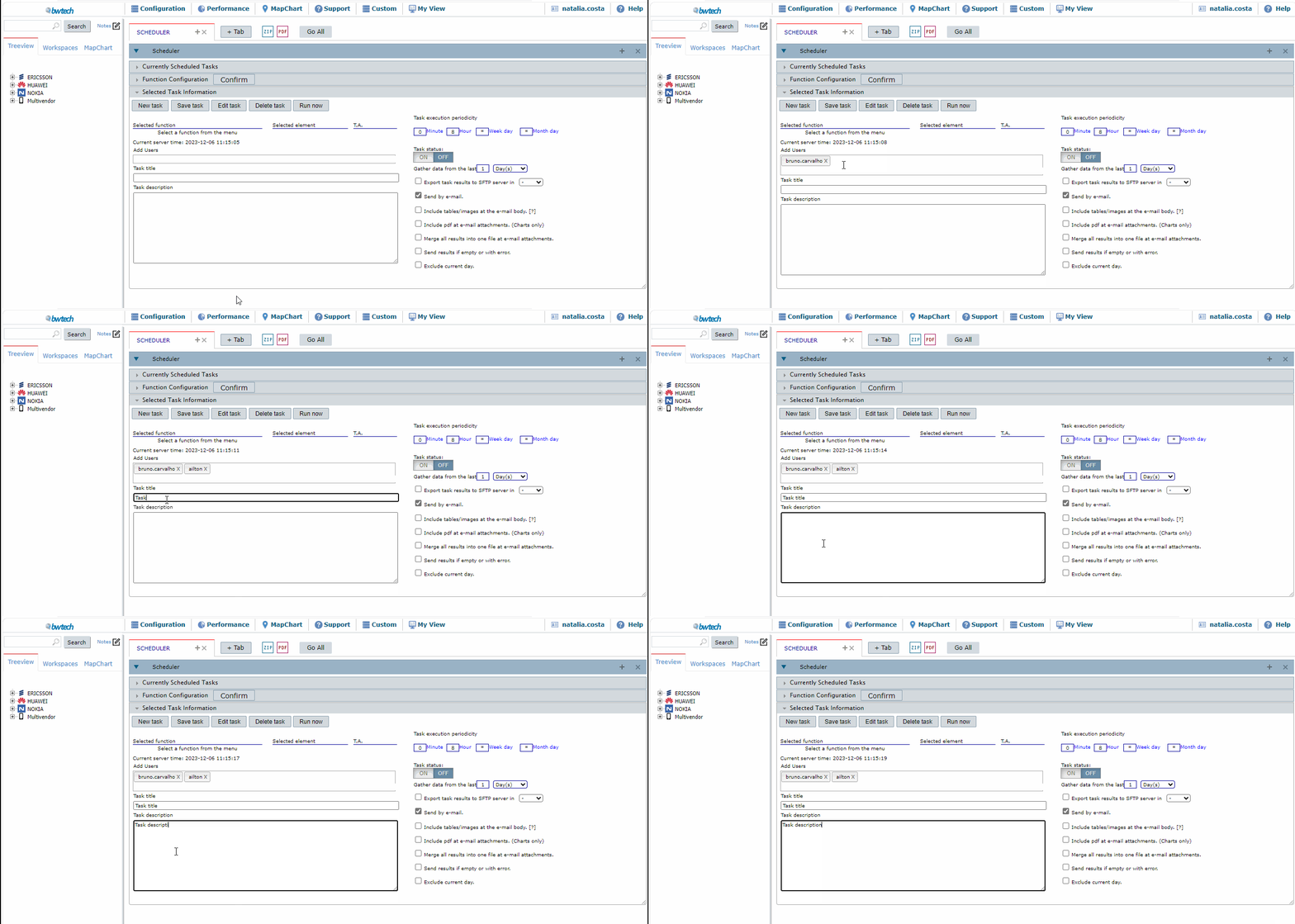
On the right side, are shown:
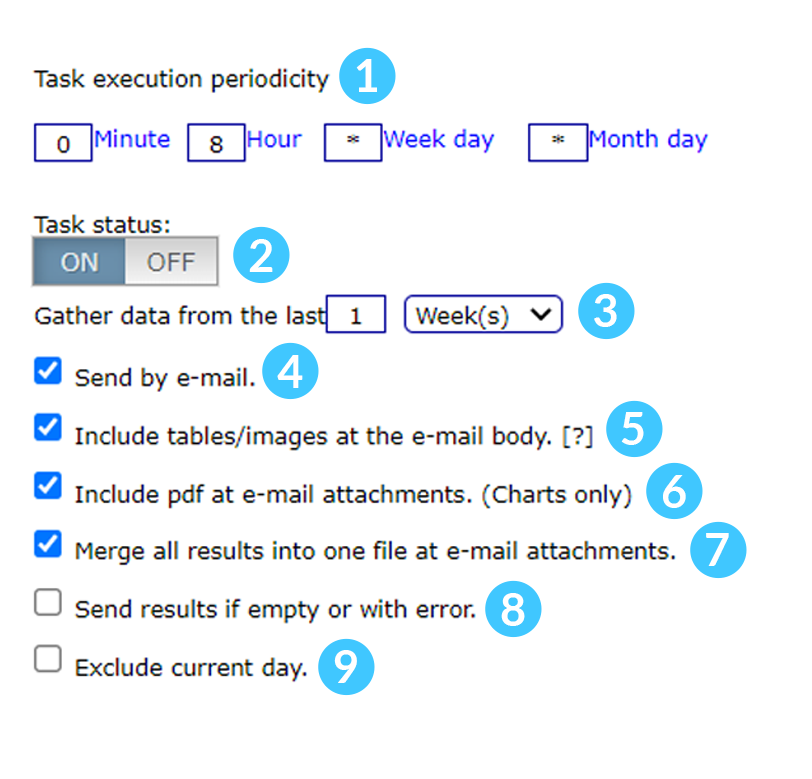
1 – The scheduler periodicity fields.
Minute: Define the minute on which the scheduled task will execute. Valid values: 0-59 (* is interpreted as 0).
Hour: Define the hour on which the scheduled task will execute. Valid values: 0-23 (* is interpreted as 0).
Weekday: Define the weekday on which the scheduled task will execute. Valid values: 0(Sunday) – 6(Saturday) (* is interpreted as every weekday).
Month day: Define the month day on which the scheduled task will execute. Valid values: 1-31 (* is interpreted as daily).
NOTE: It is possible to run the function more than once. Example: To run the function at 8 AM and 10 AM, fill in the field “Hour” with 8, 10. This functionality works for all fields – Minute, Hour, Weekday, Month day.
2- The Task status default mode is active. Click on OFF to deactivate.
3 – The scheduler will be generated according to the selected option.
- Day(s).
- Week(s).
- Month(s).
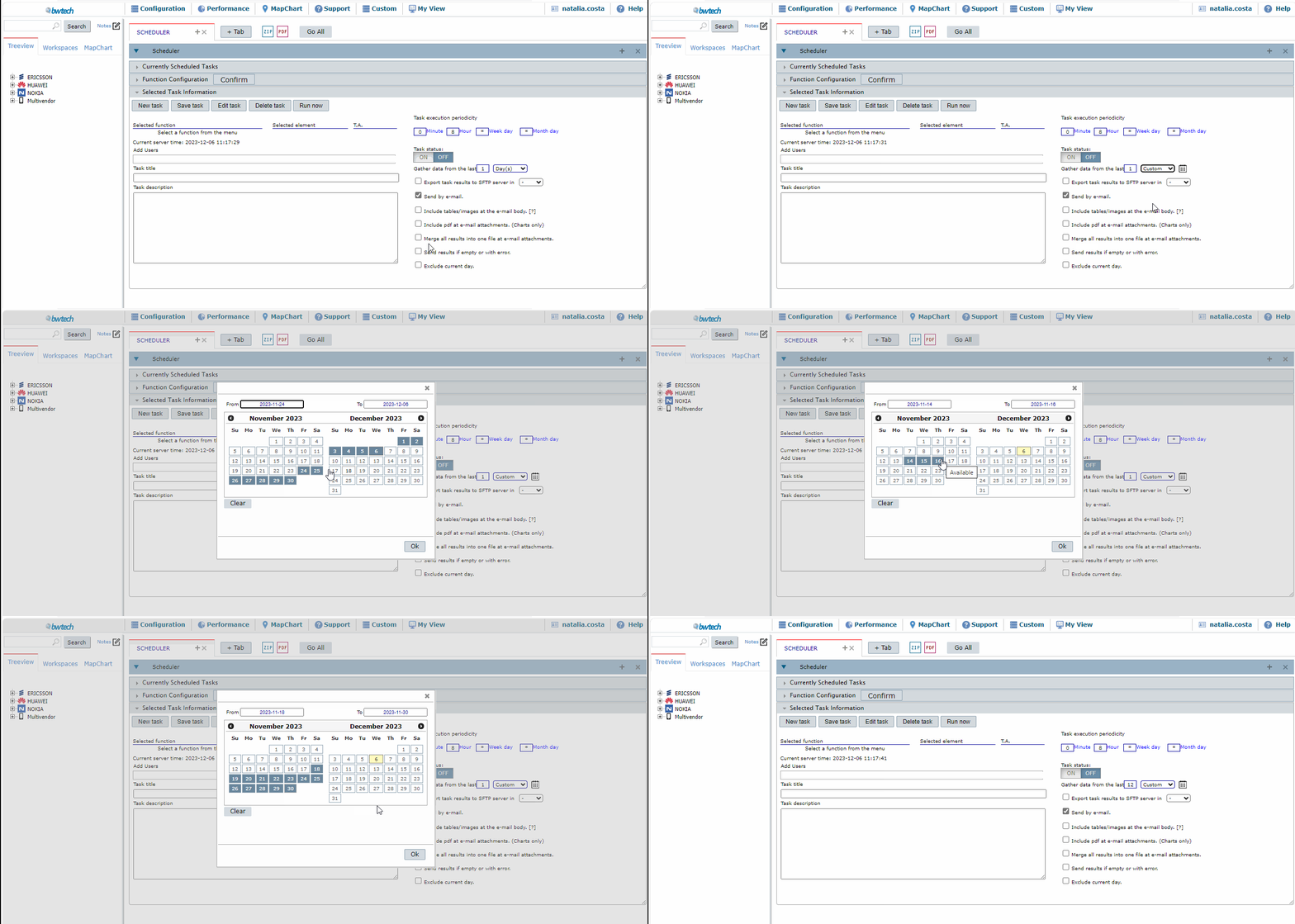
- Custom: Click on the Calendar icon to open the Date option. Click on a day to select it or write it on the boxes From and To. When clicking in more than one day, the Schedule will consider the sequence between the first and last selection. Click on Day Picking to select days separately.
4 – Check to send the results by e-mail
5- Check to include tables/images at the e-mail body.
6 – Check to add a PDF file in the e-mail attachments (This option is available only for the Charts function).
7 – Check to merge all results into one file in the e-mail attachments.
8 – Check to send the result even when it’s empty or with an error.
9 – Check to exclude the current day. The results will consider the data until the day before the task execution.
On the menu below Select Task Information, it is possible to save or run the newly created schedule.
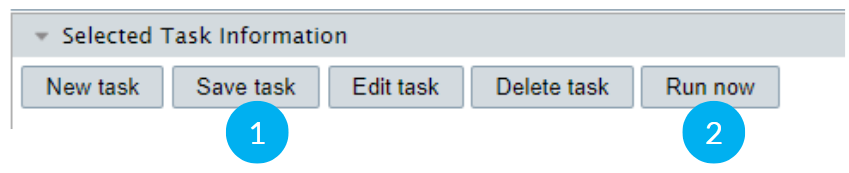
1- Click to save the task schedule.
2- Click to run the task instantly.
DELETE A TASK
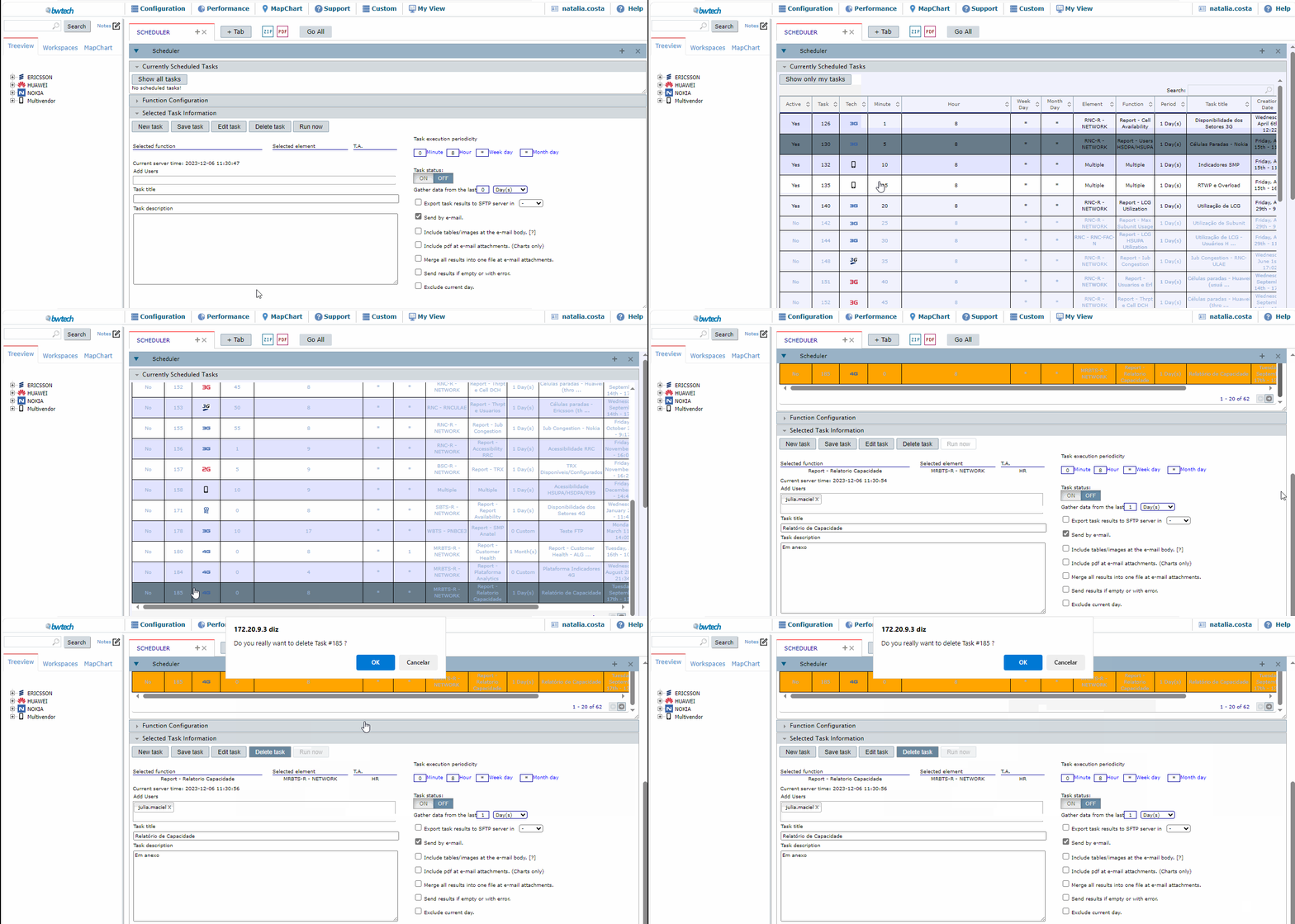
Click on Configuration in NetChart’s menu and select Schedule.
Select a scheduled task in the Current Scheduled Tasks table.
Click on Delete, in the Schedule options.
EDIT A TASK
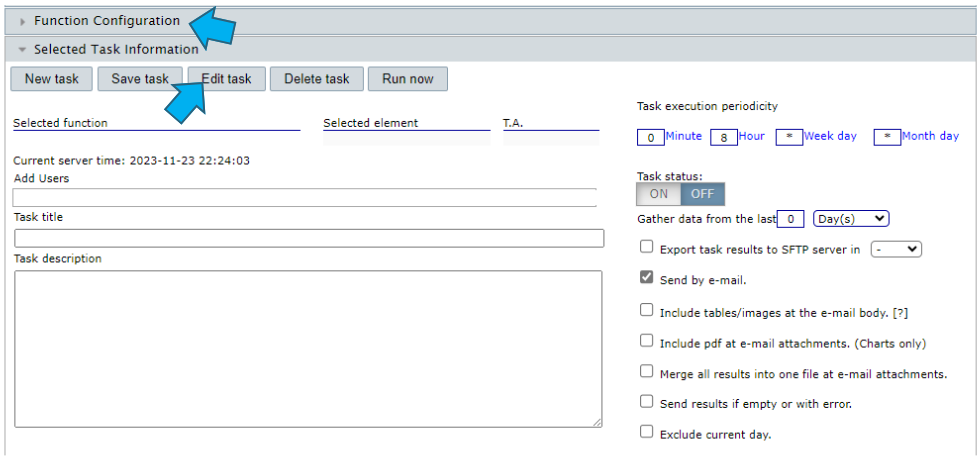
Click on Edit task to edit the function configured to run on the Scheduler, which will be displayed in the Function Configuration tab.
Click on the Function Configuration tab to alter the function as if you were creating a new task.
KEY POINTS
1 – If possible, try to avoid task collisions by checking the schedules already created.
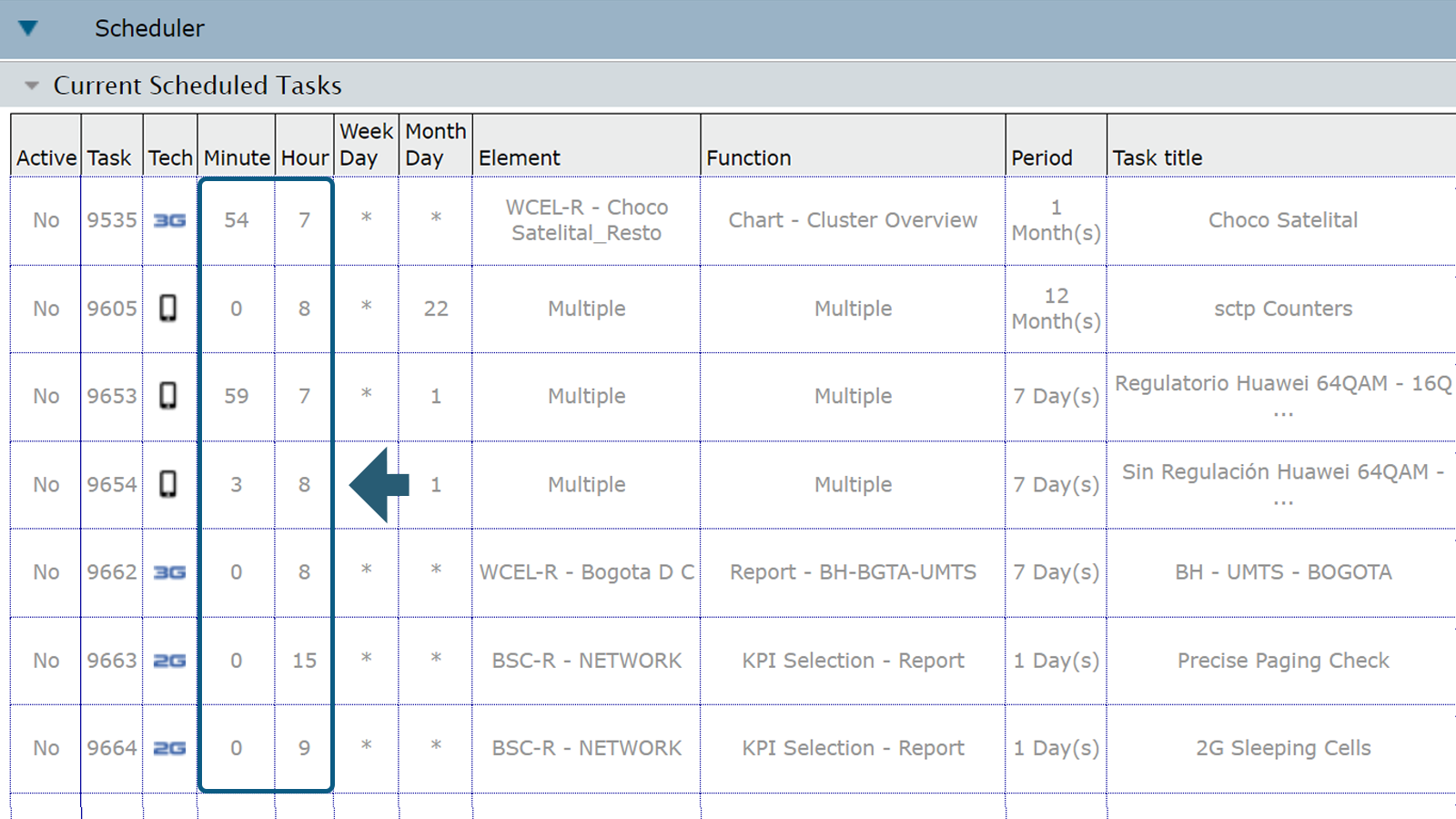
2 – Define a new task when there are no other tasks scheduled and keep at least 5 minutes margin between tasks.
3 – If it is necessary to run more than one analysis (Reports and Charts), create only one task for all the analyses required. This way is more efficient than creating a task per analysis.
COMMON ERRORS
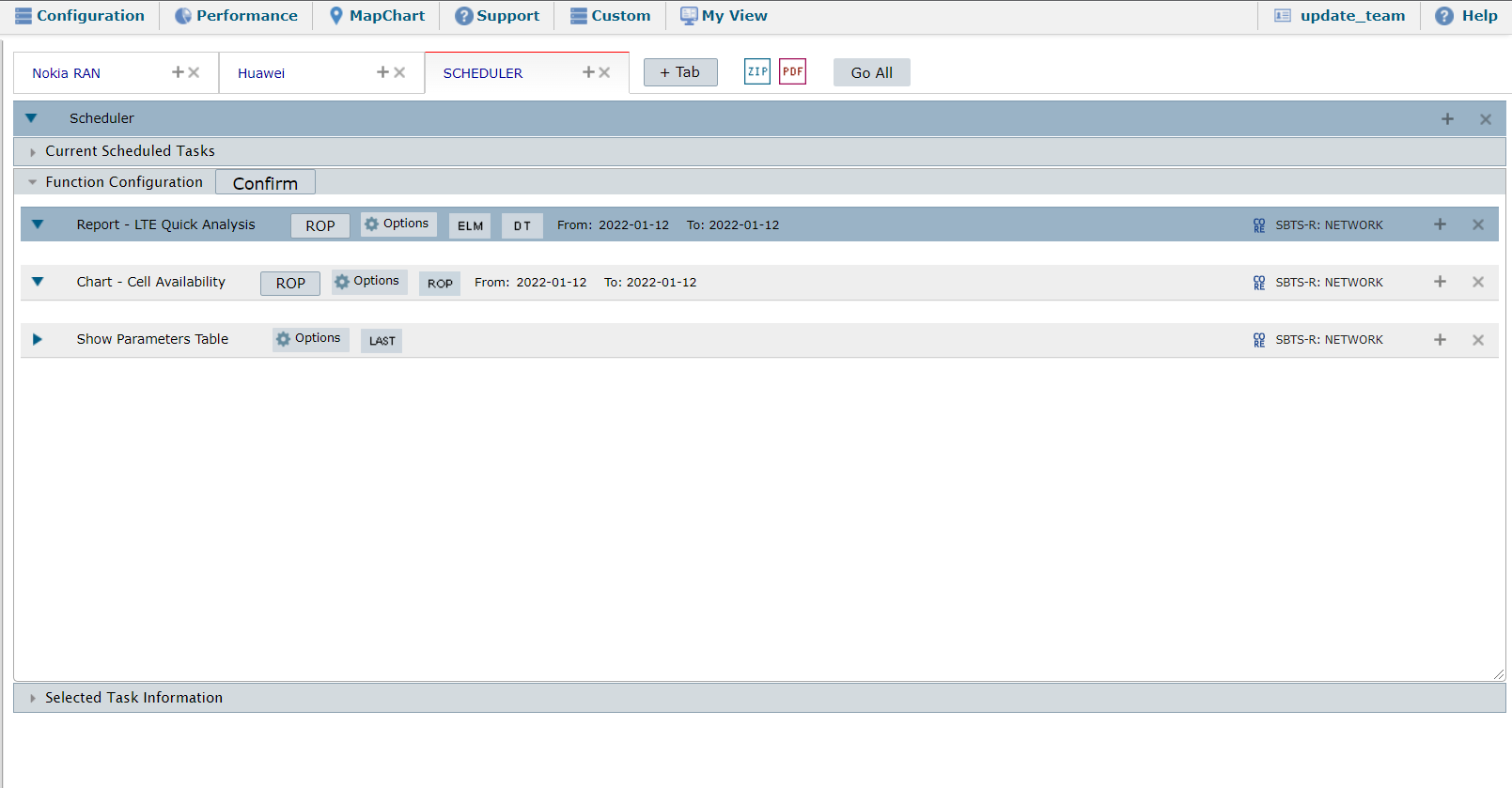
- I’m not receiving the task results in my e-mail:
Check the e-mail address registered in your NetChart account by clicking on the Manage User option in Netchart’s menu.