Contents
SEARCH
OVERVIEW
Search by elements, parameters, counters, KPIs and menus at NetChart. For each search, there are some specific options.
HOW TO USE
Type the name that you want to find and click on the Search button.
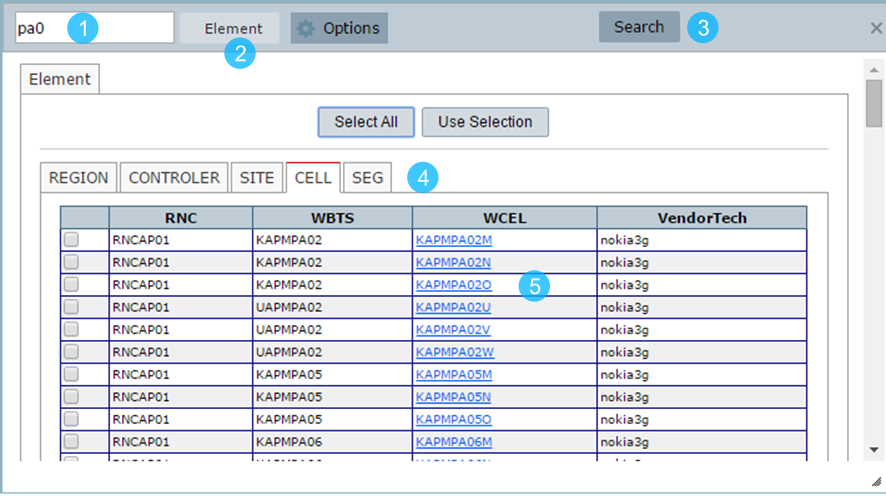
1 – Insert a part or the whole name of the element (parameter, counter, KPI or Menu).
2 – Choose what you want to search (element, parameter, counter, KPI or Menu).
3 – Click to search.
4 – These searched elements are separated by category of the element. The function will search entered name first in regions, after that, in controllers (RNC, BSC), then in sites (WBTS, NODEB, BCF), and finally in cells and segments.
5 – The search results. Click at the element to select it directly in the treeview.
Elements
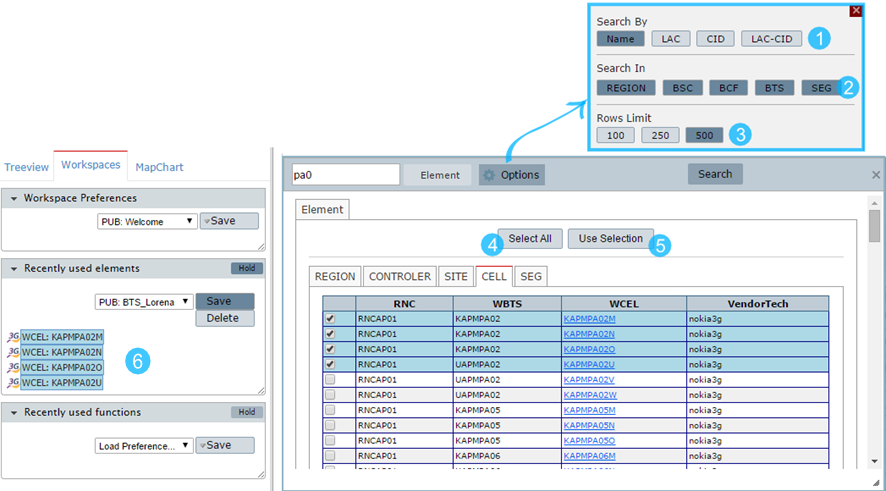
1 – Choose if you want to search by element name, by the location area (LAC), by cell ID (CID) or even by LAC-CID.
2 – Select which category will be searched. All categories buttons are selected by default, so the search will return all these kinds of elements. Change it if necessary.
3 – Limit how many rows the search will return.
4 – Select all elements from the table, they are highlighted in blue.
5 – Use the selected elements to generate charts/reports. These elements will be displayed at Workspaces > recently used elements.
6 – Elements selected after clicking at Use Selection.
Parameters
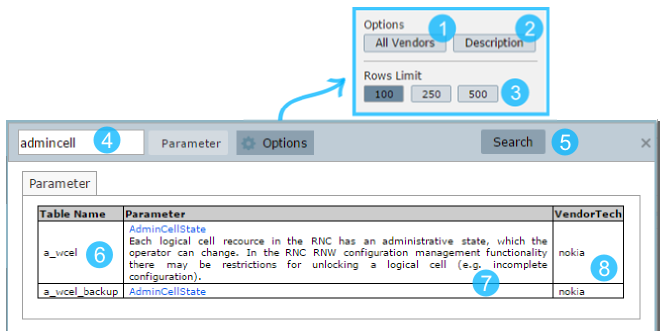
1 – Search the parameter in all available vendors or just in the vendor of the selected element in the treeview.
2 – It is also possible to search in the parameters descriptions, for example, if you do not know exactly the parameter name, you can search for something related to the description.
3 – Limit how many rows the search will return.
4 – The name of the parameter or part of it.
5 – Click to search.
6 – The table that the parameter belongs.
7 – By clicking on the parameter, its description is displayed.
8 – The vendor that belongs to each parameter.
Counters
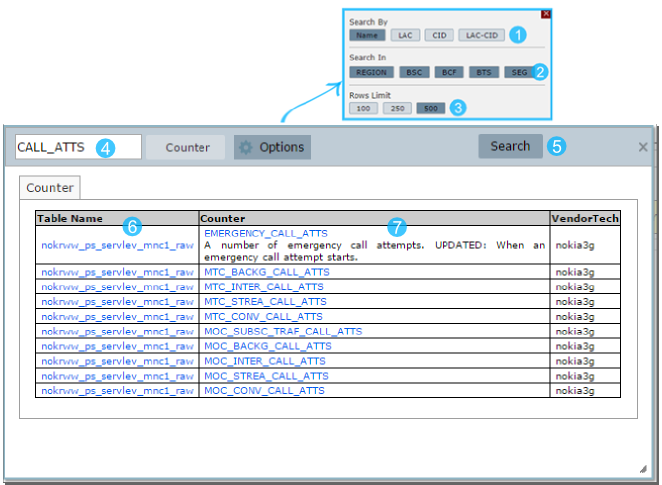
1 – Search the counter in all available vendors or just in the vendor of the selected element in the treeview.
2 – It is also possible to search in the counter descriptions, for example, if you do not know exactly the counter name, you can search for something related to the description.
3 – Limit how many rows the search will return.
4 – The name of the counter or part of it.
5 – Click to search.
6 – The table that the counter belongs. By clicking on the table name, automatically the Download Raw Counters function is opened.
7 – By clicking on the counter, its description is displayed.
6 – The vendor and the technology that belongs to each counter.
KPIs
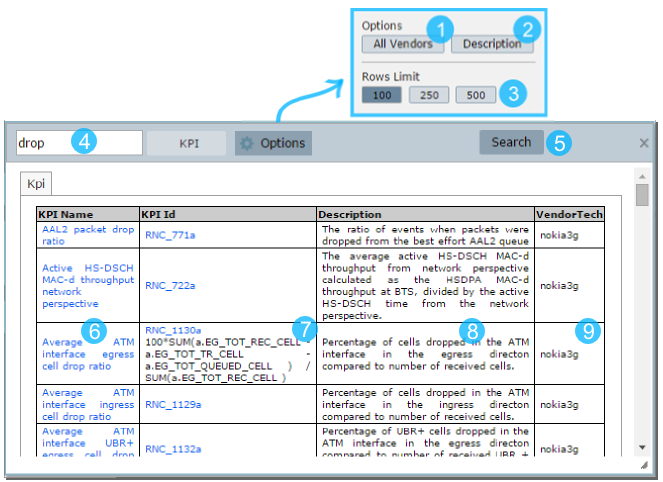
1 – Search the KPI in all available vendors or just in the vendor of the selected element in the treeview.
2 – It is also possible to search in the KPI description, for example, if you do not know exactly the KPI name, you can search for something related to the description.
3 – Limit how many rows the search will return.
4 – The name of the KPI or part of it.
5 – Click to search the KPI.
6 – The name of the KPI. By clicking on the KPI name, automatically the KPI Selection Report is opened.
7 – The ID of the KPI, its main parameter of the KPI, for example, if you want to use sub-KPIs in another one, you need to use the ID. By clicking on the KPI ID, the formula is shown.
8 – The KPI description.
9 – The vendor and the technology that belongs to each KPI.
Menus
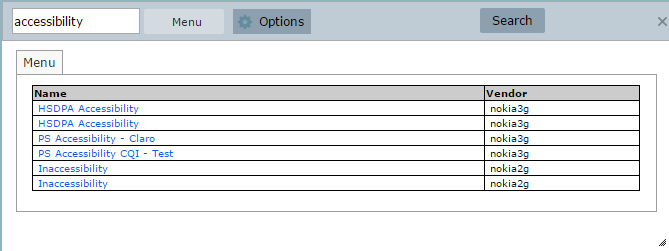
You can do the search by all the available Menus. Just click on the name of the Menu that it will be opened.
USE CASES
Use the search to know which table belongs to the parameter and/or the counter that you are looking for.
For example, when you need to create some KPI and you do not know the tables that the counters of the formula belongs to. Or when you are using any parameter functions and you need to know the table of the parameters.
COMMON ERRORS