Contents
DOWNLOAD RAW COUNTERS
OVERVIEW
Use this feature to choose and download the counters you want from one or more tables.
HOW TO USE
Log in to your NetChart account.

Choose the counters
In the treeview, choose the element(s) for which you want to download the counters.

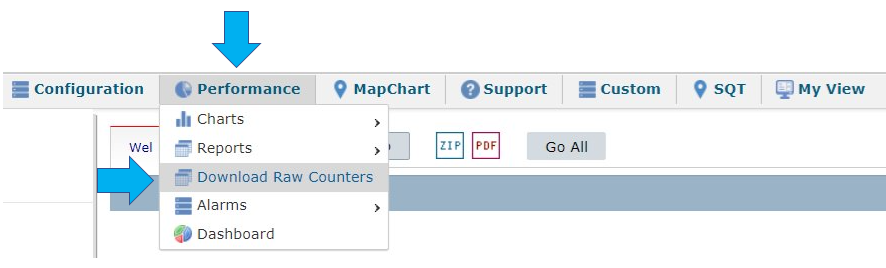
Select Performance > Download Raw Counters.
Select the time aggregation – DY, ROP, HOUR, etc.
Select the Options menu to select the time interval for your consultation.

1 – Select the desired days on the calendar by clicking on first and the last day. The period between them is selected automatically.
You can also write the time interval in the fields FROM and TO.
2 – Select:
- Clear to clear the dates selected.
- Clear > Weekends to clear all the weekends in the timeframe selected.
- Clear > Holidays to clear all the holidays in the timeframe selected.
3 – Select Day Picking to manually choose random days.
4 – Select OK to apply the settings.
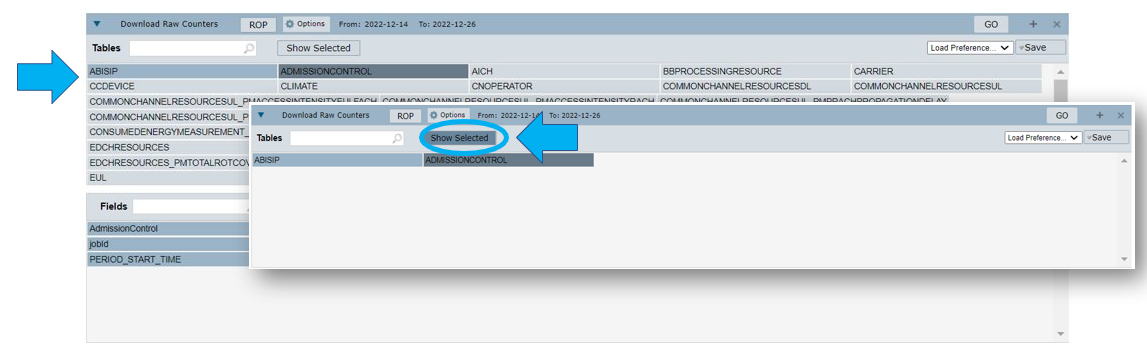
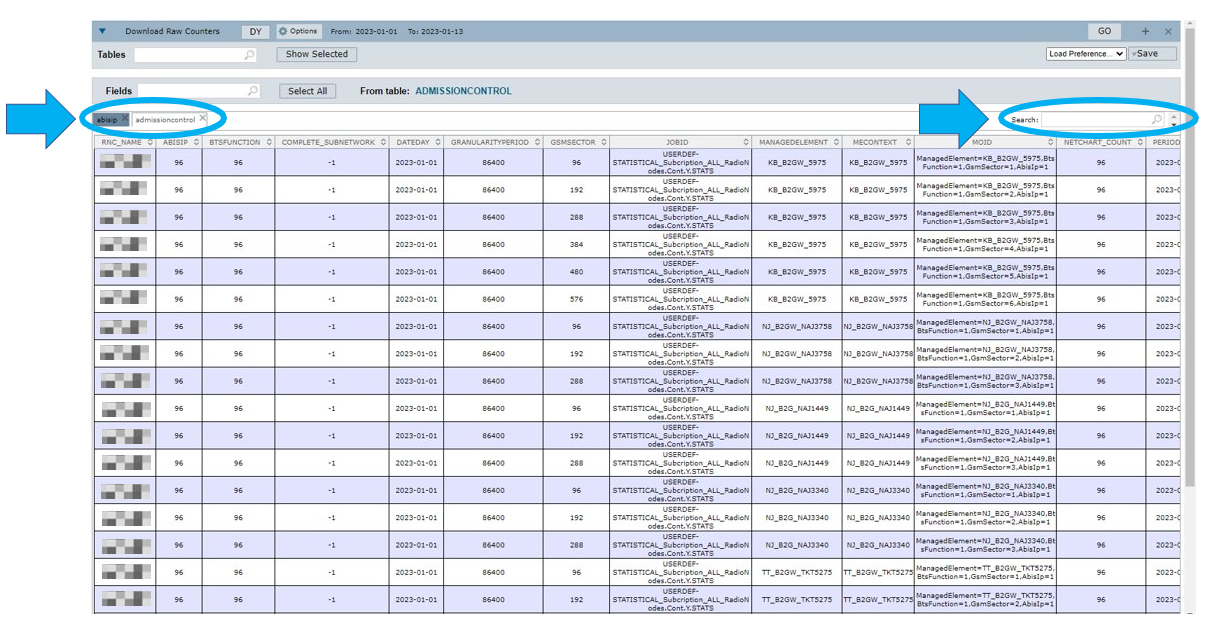
Select the tables whose counters will be downloaded. Click on Show Selected to view only the selected tables.
Use Fields to search for counters.
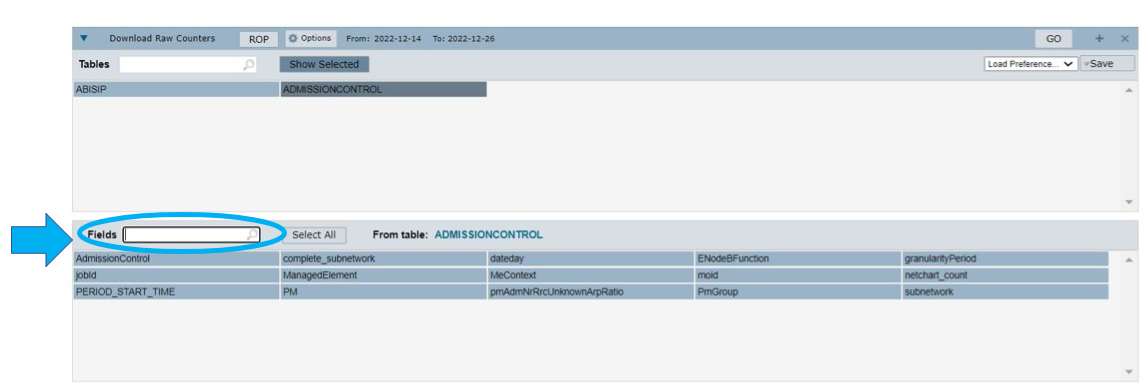
All counters are selected by default. Click on Select All to clear the checkbox and select the counters you want.

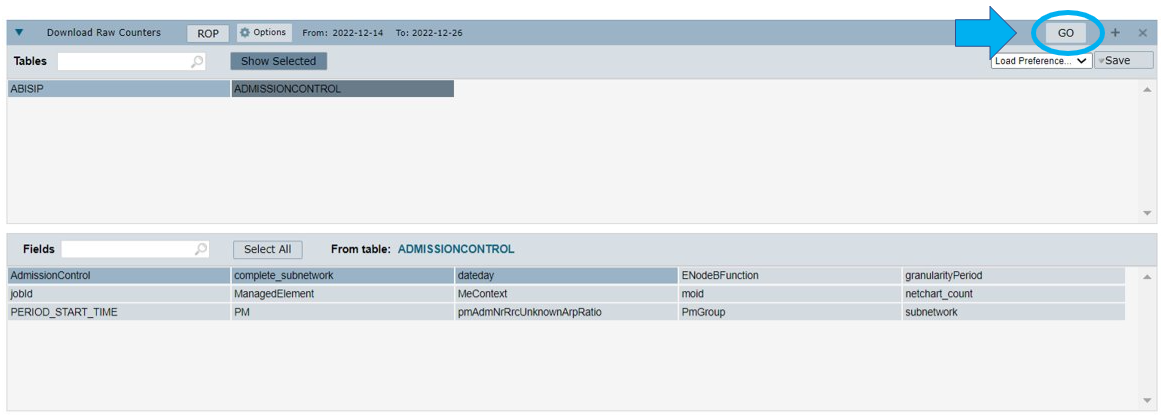
Select GO to download the counters of the selected table(s).
Select the table for which you want to see the counters. Use the Search field to filter for specific information.
Select Load Preference to save, delete or use a saved preference.
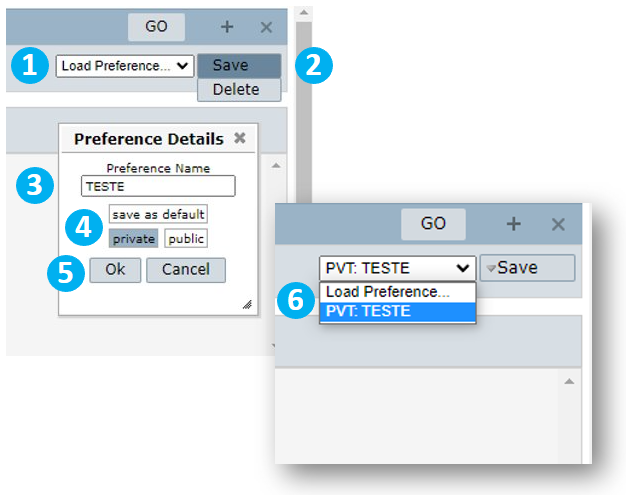
1 – Select Load Preference to save or delete a preference.
2 – Choose Save to enter the save a new preference mode or Delete to enter the delete a previously saved preference mode.
3 – If you are saving a new preference, write a name for it.
4 – Define if the new preference will be saved as default or not, and if its visibility will be private or public.
5 – Choose OK to apply the settings or Cancel to give up on the action.
6 – View the preferences saved and select the one you want to use.
Common errors
- Looking for a table that belongs to another vendor/technology.