SIMPLE CHECK
OVERVIEW
This function is used to find elements in the network whose parameters match a set of rules defined by you. It is possible to check any parameters by once since they belong to the same table. To do a check of parameters belonging to different tables, use the Multiple Check or Baseline Check function.
HOW TO USE

1 – Select the element whose children’s parameters will be analyzed.
2 – As a default, the selected date is the last available one, but if you want a specific day, you can choose it Options.
3 – Search by the table’s name or begin typing it and a filter will show you the options.
4 – Click in AND to search for all those selected checks or click in OR to search for at least one of the selected checks.
5 – If you are looking for some particular parameters, type its name on the system will search for it.
6 – The parameters that belong to the selected table. By clicking in this parameter name, its description will be showed.
7 – Some parameters come with its default value according to the vendor.
8 – For each line, define the Rule Type ( <>, >, < or = ).
9 – Define Rule Value.
10 – Check the tiny box to confirm that the rule will be used.
11 – Click on GO to do the checks.
12 – Save the preference with the rules that you will use often.
USE CASES
Suppose we need to find all BTSs in the NETWORK which is configured with the parameter adminState set to 1.
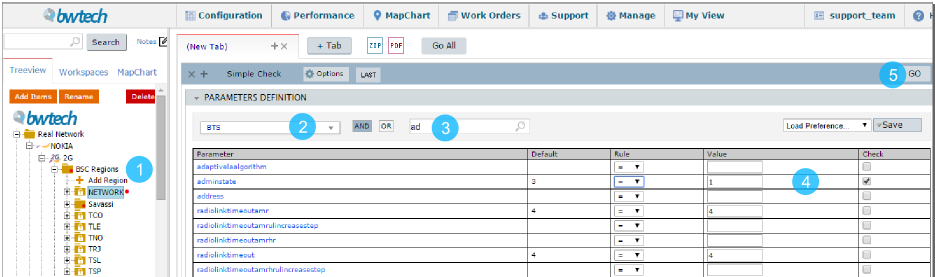
1 – Select the folder NETWORK in BSC Regions.
2 – Choose the BTS table that has the adminState parameter.
3 – Search the adminState parameter using the filter.
4 – Define the rule (adminState = 1) and check the tiny box.
5 – Click on the Go button to run.
The system will give you the results for all elements in the Network that have the parameter adminState = 1.

1 – You can search for a particular element or group of elements, typing its name in the Search box.
2 – The table with all elements that matched the rule. Observe that in this table, you will find the parameter keys for identifying each element (mo_id, BCF_ID, BSC_ID, BTS_ID, BTS_NAME), the date day that has its configuration, and the parameter adminstate.
3 – Download this result if you need it.
COMMON ERRORS
- Looking for a table that belongs to a different level of elements.
NOTE: the available tables are displayed according to the selected element in the treeview.
- Looking for a table that belongs to other vendor/technology.
- Forget to check the tiny box to confirm that the rule will be used.
- Not pay attention to the options “AND” (search for ALL those selected checks) and “OR” (search for AT LEAST ONE of the selected checks).