PUBLIC WORKSPACES
OVERVIEW
Use this shortcut to save the functions/preferences that you often use.
HOW TO USE
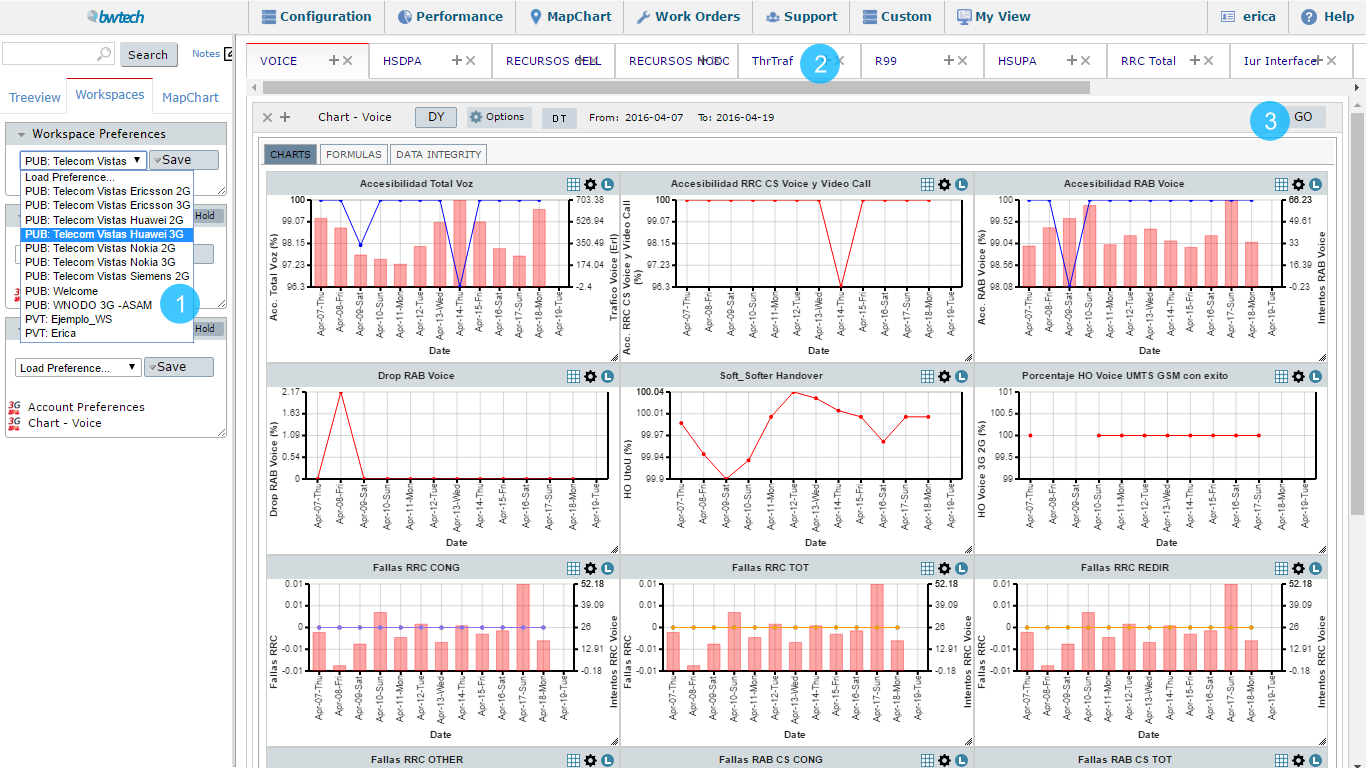
1 – Select a Workspace.
2 – Choose which tab with saved preferences you want to use.
3 – Click GO.
FUNCTIONS DESCRIPTION
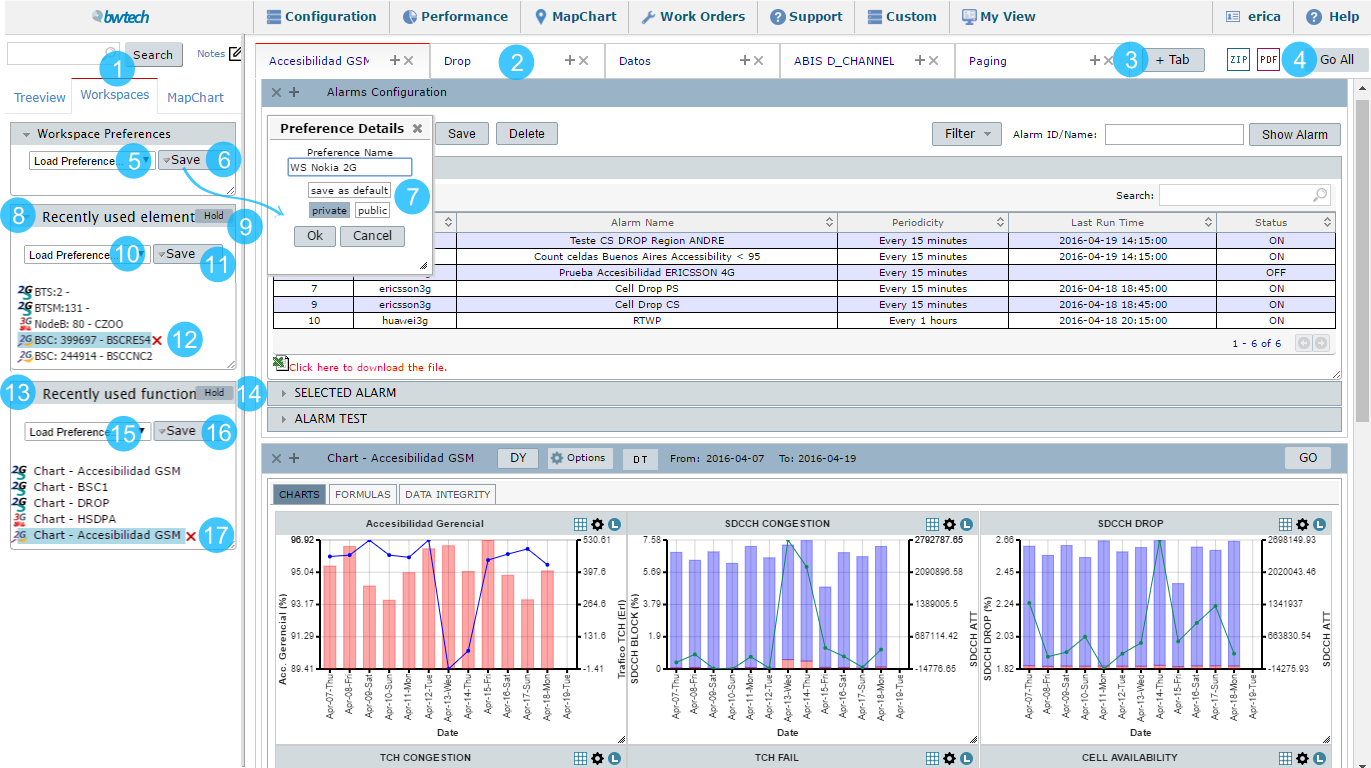
1 – Click at Shortcut Workspace (WS) to load or save a WS.
2 – Use how many tabs you need in the WS. In each tab, you can put multiple functions and charts/reports.
3 – Click + Tab to insert a new tab in the WS.
4 – Click Go All to generate all displayed functions in the tab.
5 – Select Load Preference… to save a new WS.
6 – Click to Save a new WS.
7 – Save the preference details of the WS.
8 – All the recently used elements are displayed there.
9 – Select to Hold the elements without changing it.
10 – Select Load Preference… to save recently used elements.
11 – Click to Save these elements.
12 – Click at the X icon to exclude the element.
13 – All the recently used functions are displayed there.
14 – Select to Hold the functions without changing it.
15 – Select Load Preference… to save recently used functions.
16 – Click to Save these functions.
17 – Click at the X icon to exclude the function.